> ## Documentation Index
> Fetch the complete documentation index at: https://docs.agentvault.io/llms.txt
> Use this file to discover all available pages before exploring further.
# Logins
> Save site sign-ins so your agents can sign in without ever seeing your password.
On the Logins page you save a site's sign-in so your agent can use it without
seeing your password. Adding one takes about 2 minutes, or 4 with two-factor.
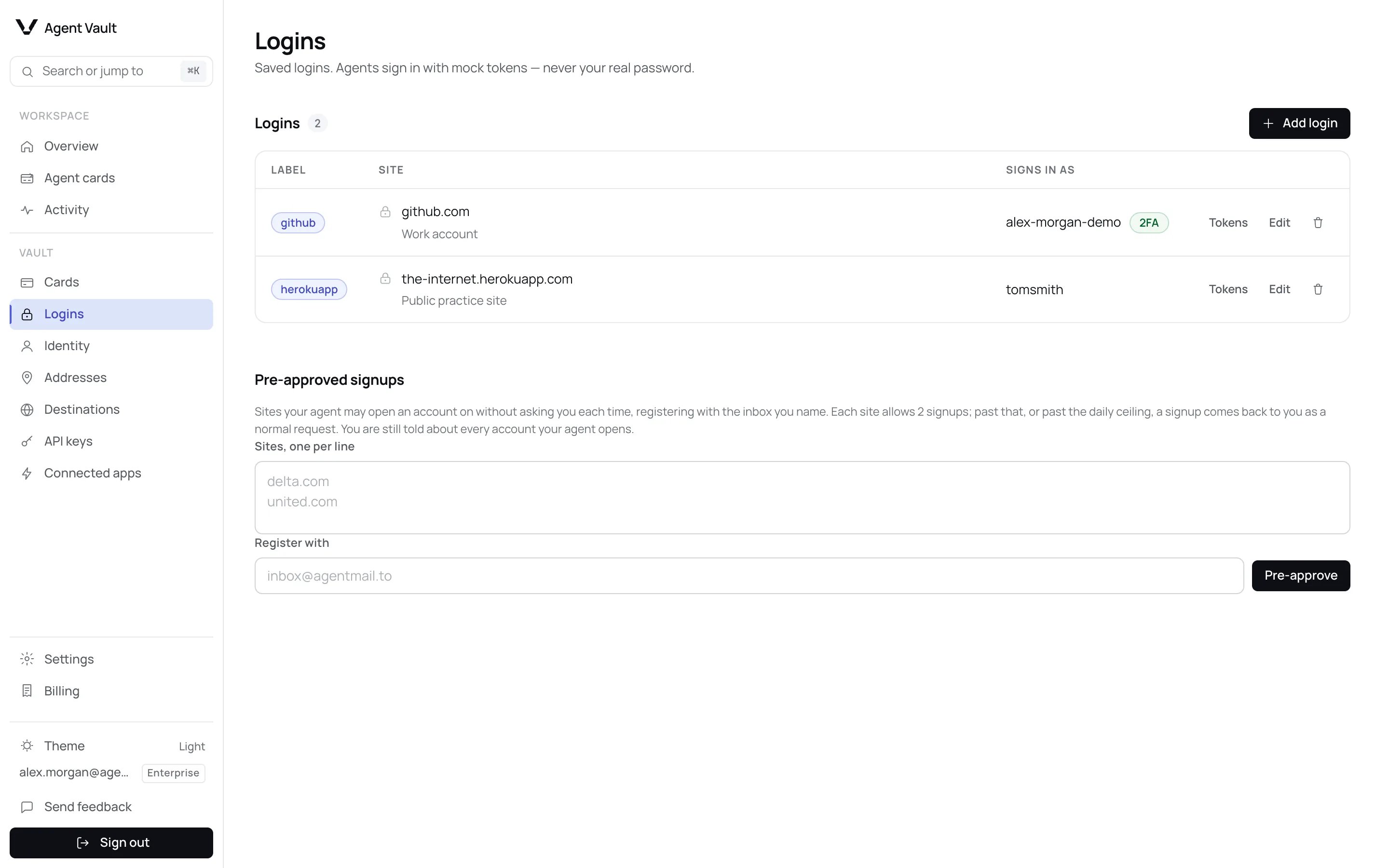
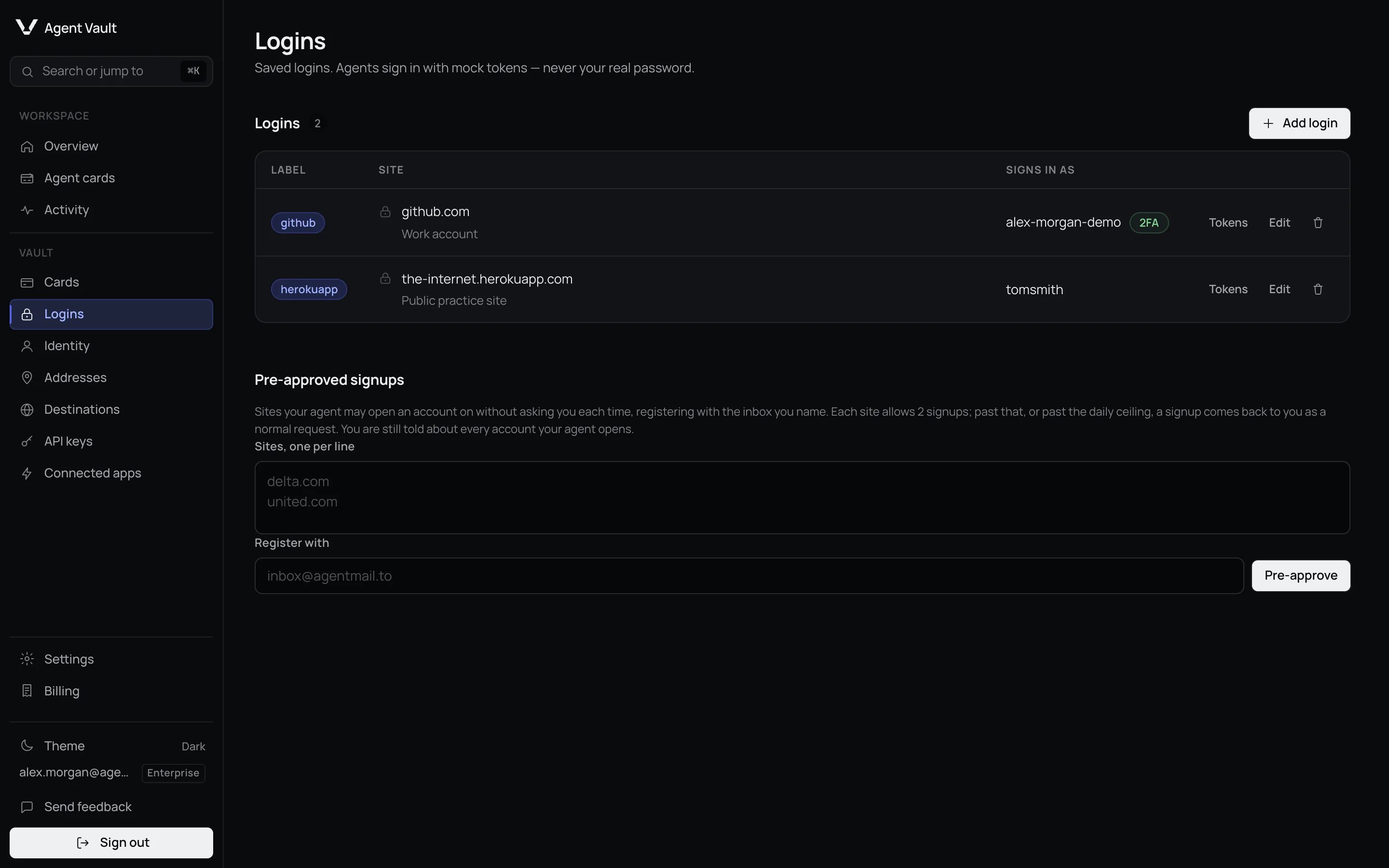 Your agent types placeholders into the sign-in form, and Agent Vault swaps in the
real values only on the login's own site. A look-alike site gets nothing.
## Add a login
It is at the top of the **Logins** page.
For example `github.com`.
Use the username or email you sign in with. Each must be at least 4
characters (the username counted after spaces at either end are removed).
A shorter one is refused with **Username must be at least 4 characters.**
or **Password must be at least 4 characters.**
Paste your authenticator app's `otpauth://` link or manual-entry code.
The login appears in the list with a **Label**, such as `github`.
Your agent can now sign in to this site, including the two-factor step if you
added a secret. It finds the login by its label.
| Field | What it does | Default | Recommendation |
| - | - | - | - |
| **Website** | The only site, with its subdomains, the login fills on | Required | The site's main domain |
| **Two-factor secret** | Lets your agent fill the current 6-digit code, which Agent Vault works out for it | None | Add it for any site that uses an authenticator app |
| **Other sign-in sites** | Extra domains, one per line, up to 10 | None | Only when the site sends you elsewhere to sign in |
| **Note** | A reminder for you | None | Which account this is |
**Other sign-in sites** match exactly, with no subdomains. For example,
`cursor.com` signs you in at `authenticator.cursor.sh`.
Each line is reduced to its host, and a host listed twice counts once. A login
holds at most 10. With more, **Add login** or **Save changes** shows **A login can have
at most 10 additional sign-in sites.** and nothing is saved, not even your
other changes. Remove entries until 10 or fewer remain, then save again. A line
that is not a valid site is refused the same way, with a message naming it.
Never add a shared sign-in provider, such as an Okta or Microsoft sign-in
domain. Your password would then fill for every company that uses it.
## Two-factor codes
With a secret stored, the login shows a **2FA** chip and your agent completes
authenticator-app codes on its own. Neither you nor the agent sees the secret
or the code. Agent Vault derives the current code from the secret and hands it to
the proxy, which types it into the site, so only the proxy and the site receive
the code. Once stored, the secret itself never leaves Agent Vault's backend.
When your agent sets up two-factor on a site (below), the site's page shows the
new secret to the Agent Vault proxy, which reads it and sends it to the backend
to store. The agent does not receive it.
| Works | Handed to you instead |
| - | - |
| Authenticator-app codes | Codes by text message or email, and passkeys |
When a site needs a method on the right, your agent passes the step to you. See
[Verification handoffs](/dashboard/approvals-and-notifications#verification-handoffs).
Your agent can also store the secret itself while setting up two-factor on a
site. Agent Vault then tries to notify you. The notification is best effort, so
check this page: a login with a stored secret shows the **2FA** chip. See
[Two-factor security](/security/totp).
## Edit a login
Click **Edit** on the row, change what you need, then click **Save changes**.
Your agent types placeholders into the sign-in form, and Agent Vault swaps in the
real values only on the login's own site. A look-alike site gets nothing.
## Add a login
It is at the top of the **Logins** page.
For example `github.com`.
Use the username or email you sign in with. Each must be at least 4
characters (the username counted after spaces at either end are removed).
A shorter one is refused with **Username must be at least 4 characters.**
or **Password must be at least 4 characters.**
Paste your authenticator app's `otpauth://` link or manual-entry code.
The login appears in the list with a **Label**, such as `github`.
Your agent can now sign in to this site, including the two-factor step if you
added a secret. It finds the login by its label.
| Field | What it does | Default | Recommendation |
| - | - | - | - |
| **Website** | The only site, with its subdomains, the login fills on | Required | The site's main domain |
| **Two-factor secret** | Lets your agent fill the current 6-digit code, which Agent Vault works out for it | None | Add it for any site that uses an authenticator app |
| **Other sign-in sites** | Extra domains, one per line, up to 10 | None | Only when the site sends you elsewhere to sign in |
| **Note** | A reminder for you | None | Which account this is |
**Other sign-in sites** match exactly, with no subdomains. For example,
`cursor.com` signs you in at `authenticator.cursor.sh`.
Each line is reduced to its host, and a host listed twice counts once. A login
holds at most 10. With more, **Add login** or **Save changes** shows **A login can have
at most 10 additional sign-in sites.** and nothing is saved, not even your
other changes. Remove entries until 10 or fewer remain, then save again. A line
that is not a valid site is refused the same way, with a message naming it.
Never add a shared sign-in provider, such as an Okta or Microsoft sign-in
domain. Your password would then fill for every company that uses it.
## Two-factor codes
With a secret stored, the login shows a **2FA** chip and your agent completes
authenticator-app codes on its own. Neither you nor the agent sees the secret
or the code. Agent Vault derives the current code from the secret and hands it to
the proxy, which types it into the site, so only the proxy and the site receive
the code. Once stored, the secret itself never leaves Agent Vault's backend.
When your agent sets up two-factor on a site (below), the site's page shows the
new secret to the Agent Vault proxy, which reads it and sends it to the backend
to store. The agent does not receive it.
| Works | Handed to you instead |
| - | - |
| Authenticator-app codes | Codes by text message or email, and passkeys |
When a site needs a method on the right, your agent passes the step to you. See
[Verification handoffs](/dashboard/approvals-and-notifications#verification-handoffs).
Your agent can also store the secret itself while setting up two-factor on a
site. Agent Vault then tries to notify you. The notification is best effort, so
check this page: a login with a stored secret shows the **2FA** chip. See
[Two-factor security](/security/totp).
## Edit a login
Click **Edit** on the row, change what you need, then click **Save changes**.
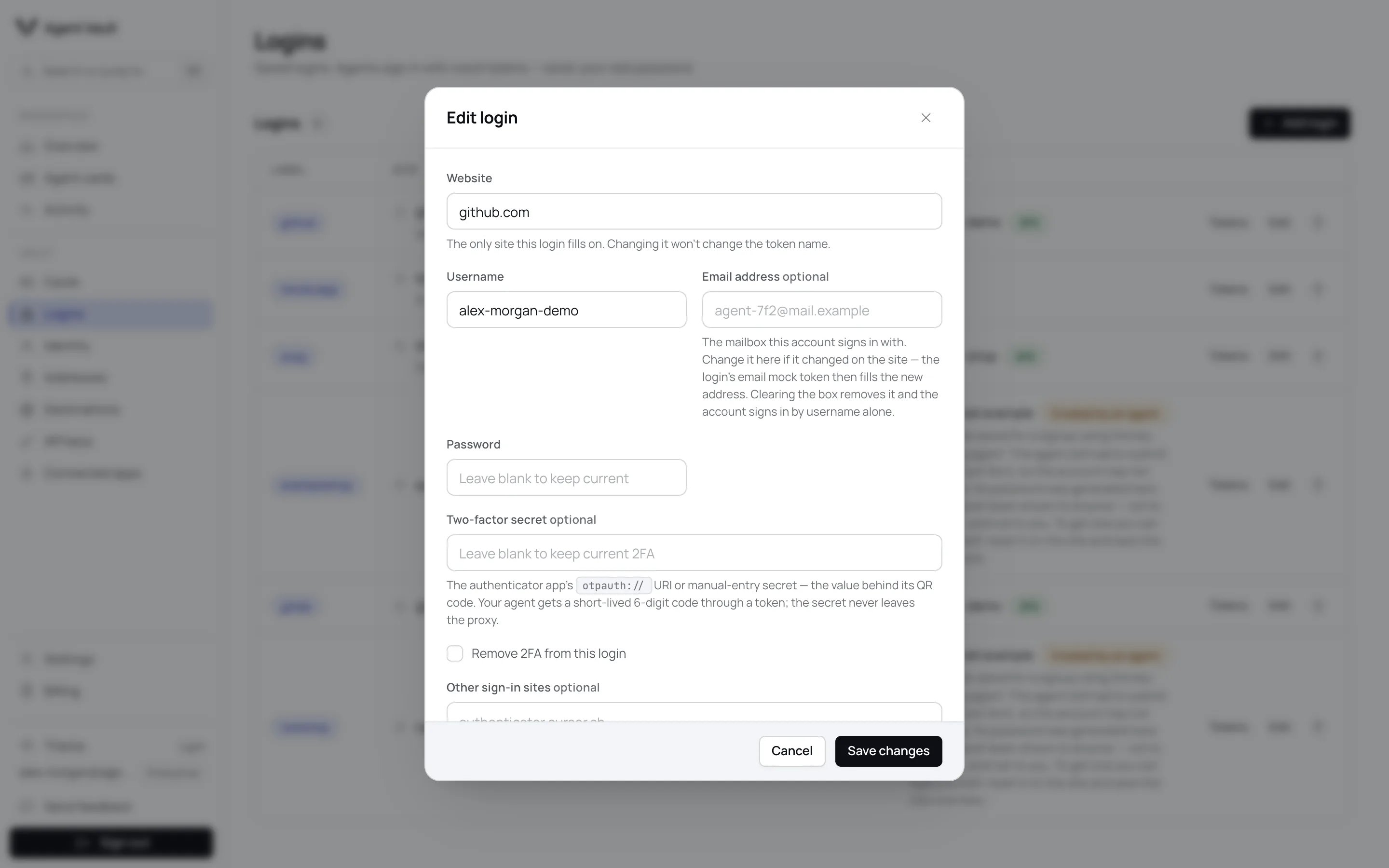
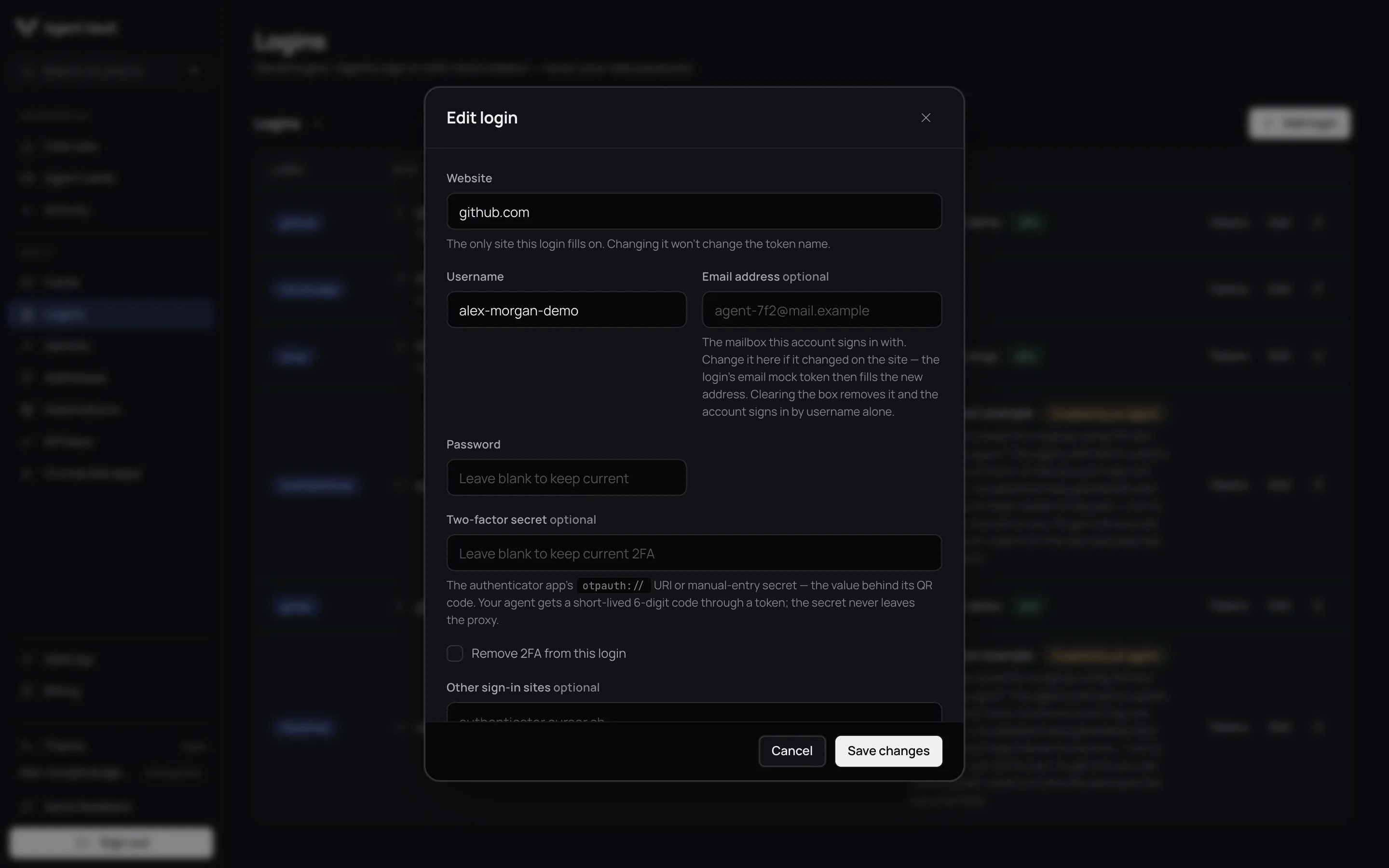 * Leave **Password** blank to keep the current one. Change it on the site first.
* Leave **Two-factor secret** blank to keep it, or tick **Remove 2FA from this login**.
* **Email address** is required when the login has no username.
Changing the website does not change the label.
## See a login's tokens
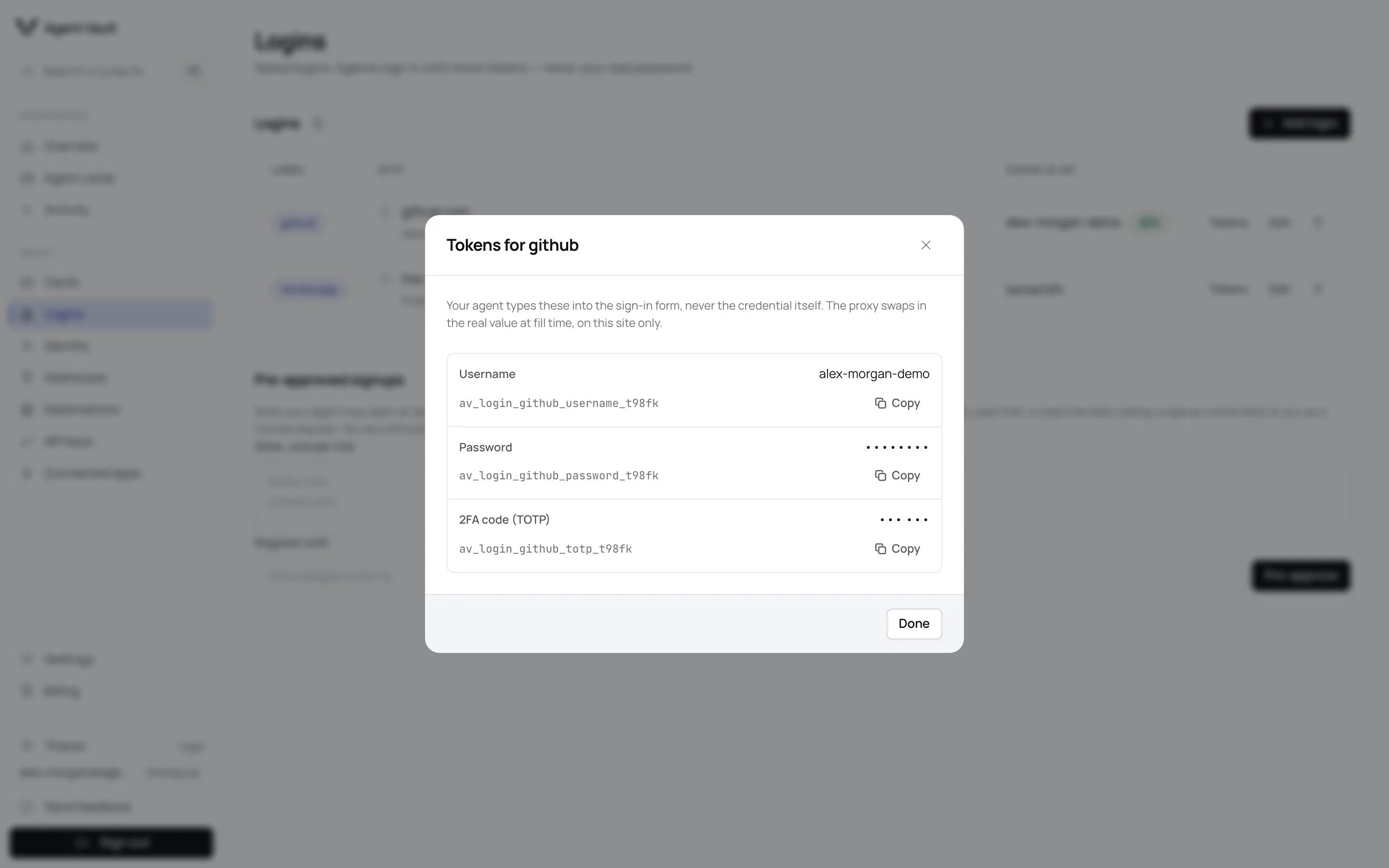
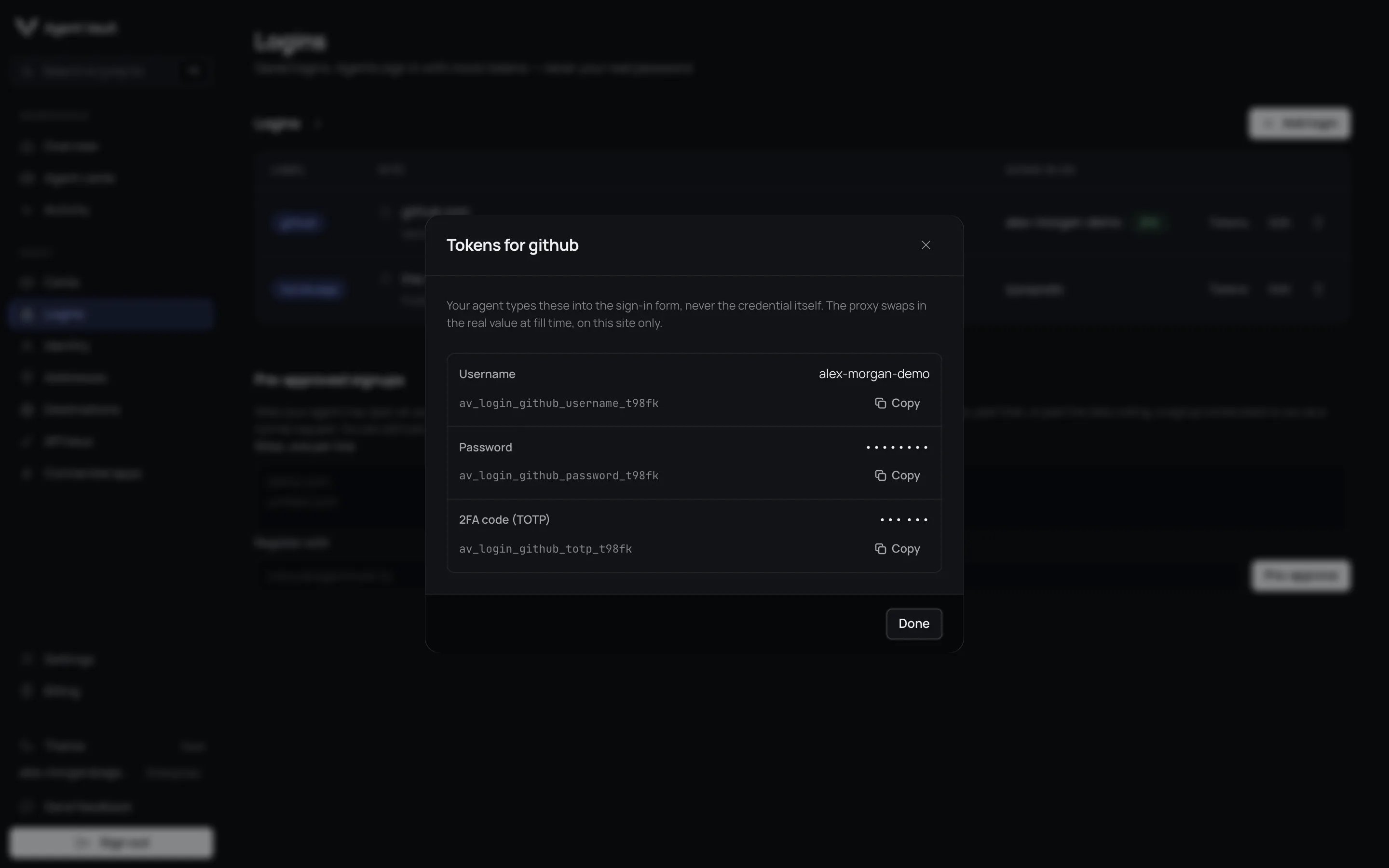
Click **Tokens** on a row to copy the placeholders your agent types: **Username**,
**Email**, **Password** and, with a secret, **2FA code (TOTP)**.
* Leave **Password** blank to keep the current one. Change it on the site first.
* Leave **Two-factor secret** blank to keep it, or tick **Remove 2FA from this login**.
* **Email address** is required when the login has no username.
Changing the website does not change the label.
## See a login's tokens
Click **Tokens** on a row to copy the placeholders your agent types: **Username**,
**Email**, **Password** and, with a secret, **2FA code (TOTP)**.
 ## Approve an agent signup
An agent whose [API key allows it](/dashboard/api-keys#let-a-key-create-logins)
can ask to create an account for you. The request appears at the top of the
Logins page.
## Approve an agent signup
An agent whose [API key allows it](/dashboard/api-keys#let-a-key-create-logins)
can ask to create an account for you. The request appears at the top of the
Logins page.

 It reads **Your agent wants to sign up for** the site, with the key, email
and password rules.
On approval, the vault generates a password. Neither you nor your agent ever receives it: it is stored encrypted, and Agent Vault decrypts it only for a fill, when the proxy types it into the site.
The new login is marked **Created by an agent**. The agent still has to finish
the site's own sign-up form. An agent can never change the username or password
of a login you added. One exception applies to any login: if it has no
two-factor secret yet, any key allowed to use it can store one during the site's
two-factor setup. It never replaces an existing secret, and Agent Vault tries to
notify you each time. See [TOTP](/security/totp#enrolment-by-an-agent).
Requests last 24 hours. See
[Agent signup](/guides/agent-signup).
## Pre-approved signups
Pre-approve a site when you want your agent to open an account there without
asking you each time. You choose the site and the exact email it registers with.
It is a section on the **Logins** page, below your logins.
Type them into **Sites, one per line**, for example `example.com`. You can
add up to 100 at a time, and the list holds up to 300 sites. See
[Setup ceilings](#setup-ceilings) below.
Type the email your agent should sign up with into **Register with**.
Each site appears in the list with **Registers with** and the email, and how
much of its allowance is used, such as **Not used yet** or **Used 1 of 2**.
A pre-approval matches the exact site and the exact email. `www.` is ignored,
but a subdomain is a different site, and so is another address, including the
same address with a `+tag`. Adding a listed site again with a different email
replaces the email and resets its count.
When your agent asks to sign up on a listed site with that email, the login is
created at once, with no request for you to approve. Everything else still
applies: the API key needs the signup permission, the key's own login limits and
the 500-login ceiling still count (all your logins count toward it, including
ones you added), and Agent Vault still tries to notify you of every account your
agent opens.
Two ceilings keep this bounded. See [Limits](/reference/limits#ceilings).
* **2 signups per listed site.** The count resets only when you remove the site
and add it again, or save it with a different email.
* **60 signups per account in a 24-hour window, by default.**
Past either ceiling, or when another approval check fails, the signup is not
refused. It comes to you as an ordinary request, at the top of this page. The
500-login ceiling is the exception: while you hold 500 logins, your agent's
signup is refused with `login_limit` and no request reaches you.
To stop pre-approving a site, click **Remove** on its row. Signups there ask you
first again. Logins already created through it stay: delete them from the list
above if you no longer want them.
### Setup ceilings
Two more ceilings apply when you add sites to the list. Each one refuses the
whole add with `signup_preapproval_too_many`, and nothing from that add is
saved. The message appears under the form, and your text stays in **Sites, one
per line** so you can fix it.
| Ceiling | Message under the form | What to do |
| - | - | - |
| 100 sites in one add, counted by line (blank lines do not count) | **Add at most 100 sites at a time.** | Split the list and click **Pre-approve** once per part |
| 300 sites on the list | **The pre-approved signup list holds at most 300 sites. Remove some before adding more.** | Click **Remove** on sites you no longer need, then add again |
Only a new site counts toward the 300. A site already on the list, whether you
enter it with the same email or a new one, does not.
## Delete a login
A confirm button appears.
The password and any two-factor secret are removed.
If the login was the only reason a site was approved, the site also leaves your
[Destinations](/dashboard/destinations).
## What happens when…
| Situation | Why | What to do |
| - | - | - |
| The login will not fill on a page | The page is not its **Website** or an **Other sign-in sites** entry, or no website is set | Check both fields. Add the domain only if it is the real sign-in page |
| The agent is not allowed to use it | Its API key is limited to other logins | Add the login to the key on [API keys](/dashboard/api-keys) |
| A signup approval will not complete | The request shows why, for example a revoked key or a full 24-hour budget of agent changes | Follow the message, then click **Approve** again |
| A signup request expires | Nobody answered within 24 hours | Your agent has to ask again |
| A login cannot be added (the form says only **That login could not be saved. Check the fields.**), or a signup approval says **Could not find a free name for this login** | All 50 labels for that site's name are taken, such as `example` up to `example50` | Delete a login that holds one of them, then try again. Editing a login does not free its label. See [Limits](/reference/limits#labels-per-site-name) |
## For developers
| Error or field | Meaning |
| - | - |
| `login_blocked` | The page is not the login's site, or no website is set |
| `scope_denied` | The API key may not use this login |
| `token_not_found` | The login was deleted, or a token was used for a field the login no longer has (you cleared its email or username, or removed its 2FA secret) |
| `tokens.username`, `tokens.email`, `tokens.totp` | The login's tokens. An empty one is left out of the catalog |
Limits on agent-added logins and signups are on [Limits](/reference/limits).
**Next:** [Sign-in guide](/guides/sign-in) to see how your agent signs in with a saved login.
This documentation is built and hosted on [Mintlify](https://mintlify.com), a developer documentation platform.
It reads **Your agent wants to sign up for** the site, with the key, email
and password rules.
On approval, the vault generates a password. Neither you nor your agent ever receives it: it is stored encrypted, and Agent Vault decrypts it only for a fill, when the proxy types it into the site.
The new login is marked **Created by an agent**. The agent still has to finish
the site's own sign-up form. An agent can never change the username or password
of a login you added. One exception applies to any login: if it has no
two-factor secret yet, any key allowed to use it can store one during the site's
two-factor setup. It never replaces an existing secret, and Agent Vault tries to
notify you each time. See [TOTP](/security/totp#enrolment-by-an-agent).
Requests last 24 hours. See
[Agent signup](/guides/agent-signup).
## Pre-approved signups
Pre-approve a site when you want your agent to open an account there without
asking you each time. You choose the site and the exact email it registers with.
It is a section on the **Logins** page, below your logins.
Type them into **Sites, one per line**, for example `example.com`. You can
add up to 100 at a time, and the list holds up to 300 sites. See
[Setup ceilings](#setup-ceilings) below.
Type the email your agent should sign up with into **Register with**.
Each site appears in the list with **Registers with** and the email, and how
much of its allowance is used, such as **Not used yet** or **Used 1 of 2**.
A pre-approval matches the exact site and the exact email. `www.` is ignored,
but a subdomain is a different site, and so is another address, including the
same address with a `+tag`. Adding a listed site again with a different email
replaces the email and resets its count.
When your agent asks to sign up on a listed site with that email, the login is
created at once, with no request for you to approve. Everything else still
applies: the API key needs the signup permission, the key's own login limits and
the 500-login ceiling still count (all your logins count toward it, including
ones you added), and Agent Vault still tries to notify you of every account your
agent opens.
Two ceilings keep this bounded. See [Limits](/reference/limits#ceilings).
* **2 signups per listed site.** The count resets only when you remove the site
and add it again, or save it with a different email.
* **60 signups per account in a 24-hour window, by default.**
Past either ceiling, or when another approval check fails, the signup is not
refused. It comes to you as an ordinary request, at the top of this page. The
500-login ceiling is the exception: while you hold 500 logins, your agent's
signup is refused with `login_limit` and no request reaches you.
To stop pre-approving a site, click **Remove** on its row. Signups there ask you
first again. Logins already created through it stay: delete them from the list
above if you no longer want them.
### Setup ceilings
Two more ceilings apply when you add sites to the list. Each one refuses the
whole add with `signup_preapproval_too_many`, and nothing from that add is
saved. The message appears under the form, and your text stays in **Sites, one
per line** so you can fix it.
| Ceiling | Message under the form | What to do |
| - | - | - |
| 100 sites in one add, counted by line (blank lines do not count) | **Add at most 100 sites at a time.** | Split the list and click **Pre-approve** once per part |
| 300 sites on the list | **The pre-approved signup list holds at most 300 sites. Remove some before adding more.** | Click **Remove** on sites you no longer need, then add again |
Only a new site counts toward the 300. A site already on the list, whether you
enter it with the same email or a new one, does not.
## Delete a login
A confirm button appears.
The password and any two-factor secret are removed.
If the login was the only reason a site was approved, the site also leaves your
[Destinations](/dashboard/destinations).
## What happens when…
| Situation | Why | What to do |
| - | - | - |
| The login will not fill on a page | The page is not its **Website** or an **Other sign-in sites** entry, or no website is set | Check both fields. Add the domain only if it is the real sign-in page |
| The agent is not allowed to use it | Its API key is limited to other logins | Add the login to the key on [API keys](/dashboard/api-keys) |
| A signup approval will not complete | The request shows why, for example a revoked key or a full 24-hour budget of agent changes | Follow the message, then click **Approve** again |
| A signup request expires | Nobody answered within 24 hours | Your agent has to ask again |
| A login cannot be added (the form says only **That login could not be saved. Check the fields.**), or a signup approval says **Could not find a free name for this login** | All 50 labels for that site's name are taken, such as `example` up to `example50` | Delete a login that holds one of them, then try again. Editing a login does not free its label. See [Limits](/reference/limits#labels-per-site-name) |
## For developers
| Error or field | Meaning |
| - | - |
| `login_blocked` | The page is not the login's site, or no website is set |
| `scope_denied` | The API key may not use this login |
| `token_not_found` | The login was deleted, or a token was used for a field the login no longer has (you cleared its email or username, or removed its 2FA secret) |
| `tokens.username`, `tokens.email`, `tokens.totp` | The login's tokens. An empty one is left out of the catalog |
Limits on agent-added logins and signups are on [Limits](/reference/limits).
**Next:** [Sign-in guide](/guides/sign-in) to see how your agent signs in with a saved login.
This documentation is built and hosted on [Mintlify](https://mintlify.com), a developer documentation platform.