> ## Documentation Index
> Fetch the complete documentation index at: https://docs.agentvault.io/llms.txt
> Use this file to discover all available pages before exploring further.
# Sign in to a site
> Sign an agent in with a stored login, including email-first pages and authenticator codes, without the agent ever seeing the password.
Sign an agent in to a site with a login from the vault, including email-first pages and authenticator codes. Wiring it up takes about 10 minutes. The agent is never handed the password, the authenticator secret or the code (see the [one read-back exception](/security/agent-context#the-guarantee)).
## Before you start
* A login in the vault with its **website** set. The account holder adds one on [Logins](/dashboard/logins), or the agent opens one through [agent signup](/guides/agent-signup).
* An [API key](/dashboard/api-keys) whose scope includes that login.
* A proxy session on the site's sign-in page.
## Sign in
```ts theme={null}
const { logins, relatedLogins } = await tokensForUrl("https://github.com/login");
```
Over MCP, call `get_token_catalog` with the page URL. A login matches its `website` and subdomains, plus any `extraWebsites` exactly. Fields are in [Token catalog](/reference/token-catalog).
An empty `logins` is not always "no account". A login on a **sibling host** appears in `relatedLogins`: go to that host and ask again. Both lists empty means no login for this site is visible to **this key**. A key limited to **Only selected** logins never sees logins outside its selection, so the account may already have one here. Before you [open an account](/guides/agent-signup), have the account holder check **Logins** and, if one exists, add it to the key's access on [API keys](/dashboard/api-keys).
Choose from what the field asks for, read from its visible label and its `type`. Do not go by its `name` or `id`: many sites call an email field `username`.
| The field asks for | Fill this |
| - | - |
| An email address (`type="email"`, or a label such as **Email**) | `tokens.email`. With no `tokens.email`, stop and ask the account holder |
| The site's own handle, in so many words (a label such as **Username**) | `tokens.username` |
| Either (**Email or username**) | `tokens.email` if present, otherwise `tokens.username` |
`tokens.username` is absent until a username is set, so a login opened with `create_login` usually signs in with `tokens.email`. A login the account holder saved by hand starts with a username, and has `tokens.email` only if they add one. That username may be their email address or a handle, and you cannot tell which, so never fill it into a field that requires an email. The account holder can add an email to the login on [Logins](/dashboard/logins), and the catalog then carries `tokens.email`. If the form asks for a handle and the entry has only `tokens.email`, ask the account holder rather than guessing.
Email-first sign-ins (Microsoft, Okta, Google) show no password field until the identifier is submitted. Wait for a **visible** password field, because these pages often keep a hidden one in the markup.
```ts SDK theme={null}
let twoStep = false;
try {
await page.waitForSelector('input[type="password"]', { state: "visible", timeout: 3000 });
} catch {
twoStep = true;
}
if (twoStep) {
// An email field needs tokens.email. Never substitute tokens.username here.
const email = login.tokens.email;
if (!email) throw new Error("This login has no email on file. Ask the account holder to add one.");
await page.fill("#email", email);
await page.press("#email", "Enter");
await page.waitForSelector('input[type="password"]', { state: "visible" });
}
await page.fill("#password", login.tokens.password);
```
```text MCP theme={null}
1. fill_login with usernameSelector + usernameToken only
2. press Enter, or click the continue button
3. wait_for_selector for the password field
4. fill_login with passwordSelector + passwordToken only
```
An entry with `hasTotp: true` carries `tokens.totp`. Fill it like any field:
```ts theme={null}
await page.fill("#code", login.tokens.totp);
```
The backend derives the current code from the stored secret, and the proxy types it. Submit promptly: a code lasts one window, usually 30 seconds. SMS codes, email codes and passkeys belong to the account holder (see [whose second factor it is](#whose-second-factor-it-is)).
Race a signed-in marker (an account menu) against the site's error element: over MCP, `get_session_outcome` with `successSelector` and `failureSelector`, and no `confirmsCheckout`. Never use `recordOutcome()` here, or a failed login reads as a purchase.
Your agent is signed in, and it never received the password: the proxy typed the real value into the site. To turn on two-factor for a site, see [Storing a 2FA secret](/guides/page-hints#storing-a-2fa-secret).
## When a login submits and nothing obvious happens
You are neither signed in nor shown an error. Do not conclude the credentials were wrong. Screenshots cannot help: a token was filled, so every capture is black.
If neither the signed-in marker nor the error appears, the result is inconclusive. Say so.
`detectChallenge()` returning `{ detected: false }` means "matched no known pattern", not "no challenge". Look for `input[autocomplete="one-time-code"]`, or a field whose name or id contains `otp`, `one-time` or `passcode`.
Sign-in apps often keep a dormant code input on the page, and `:visible` still matches one with `opacity: 0`. Scope the wording to the field's own form:
```ts theme={null}
const n = await page.locator('form:has(input[name*="otp" i]):has-text("authenticator")').count();
```
A bare `*Code` or `pin` match is not evidence: `postalCode` and `couponCode` are ordinary fields.
`click` runs Playwright's full checks, which a dormant field usually fails. `press` only needs the element attached and enabled, so it proves nothing. A failed click is strong evidence, a successful one weak.
## Whose second factor it is
| What is on screen | Who answers |
| - | - |
| The authenticator step of this sign-in, the login has `tokens.totp`, and `detectChallenge()` does not report `deliveredCode: true` | The agent fills `tokens.totp` |
| The authenticator step, but the login has no `tokens.totp` | The account holder |
| An SMS or email code (`deliveredCode: true`), or any prompt you cannot tie to this login | The account holder |
Filling an authenticator code into an SMS prompt wastes an attempt and can trip the site's retry limit.
## What the account holder sees
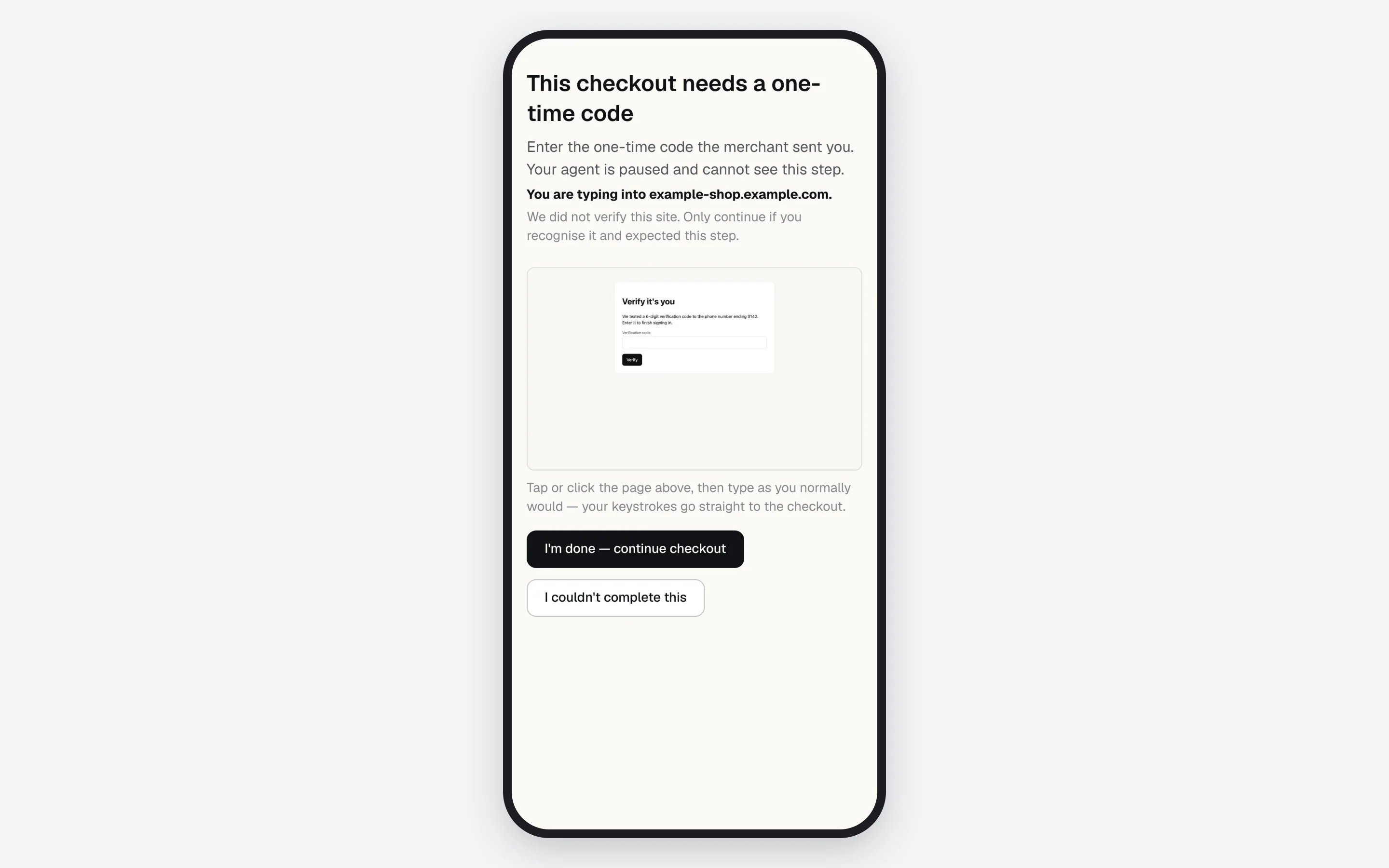
For an authenticator step the agent answers, nothing. For anything else, only the account holder can finish:
* If `detectChallenge()` reports `otp` without `ambiguousOnly`, request a [challenge handoff](/guides/challenges). They tap **Open live checkout** and type the code on the live page.
* If you found the prompt only through the checks above, tell the user their second factor needs them. `requestChallengeHandoff()` refuses a prompt its own detection cannot see.
 ## If something goes wrong
| Symptom | Cause | Fix |
| - | - | - |
| `login_blocked` | The page is not the login's registered site, or the login has no website set | Use the login whose `website` matches. If it never worked anywhere, the account holder sets the website on **Logins** |
| `login_blocked`, transient | The frame moved to another site before the value was typed | Nothing was typed. Wait for the frame to settle and retry once |
| `token_not_found` on a `_totp` token | The login has no stored authenticator secret, or the account holder removed it | Refresh the catalog. Fill a TOTP token only for an entry with `hasTotp: true` |
| `fill_rejected` | The field did not keep the value, or `maxlength` cut it | Check the expected format. For a phone, use `phone_national` |
| The field takes the value but the button stays disabled | `fill()` raises `input` but no key or `change` events | Use `pressSequentially`, then `press("Tab")` |
| Neither signed in nor an error | Often a second factor that detection missed | Work through [the checks above](#when-a-login-submits-and-nothing-obvious-happens) |
More in [Troubleshooting](/reference/troubleshooting#sign-in) and [Error codes](/sdk/error-codes).
**Next:** [Let an agent open an account](/guides/agent-signup) for a site that has no login in the vault yet.
This documentation is built and hosted on [Mintlify](https://mintlify.com), a developer documentation platform.
## If something goes wrong
| Symptom | Cause | Fix |
| - | - | - |
| `login_blocked` | The page is not the login's registered site, or the login has no website set | Use the login whose `website` matches. If it never worked anywhere, the account holder sets the website on **Logins** |
| `login_blocked`, transient | The frame moved to another site before the value was typed | Nothing was typed. Wait for the frame to settle and retry once |
| `token_not_found` on a `_totp` token | The login has no stored authenticator secret, or the account holder removed it | Refresh the catalog. Fill a TOTP token only for an entry with `hasTotp: true` |
| `fill_rejected` | The field did not keep the value, or `maxlength` cut it | Check the expected format. For a phone, use `phone_national` |
| The field takes the value but the button stays disabled | `fill()` raises `input` but no key or `change` events | Use `pressSequentially`, then `press("Tab")` |
| Neither signed in nor an error | Often a second factor that detection missed | Work through [the checks above](#when-a-login-submits-and-nothing-obvious-happens) |
More in [Troubleshooting](/reference/troubleshooting#sign-in) and [Error codes](/sdk/error-codes).
**Next:** [Let an agent open an account](/guides/agent-signup) for a site that has no login in the vault yet.
This documentation is built and hosted on [Mintlify](https://mintlify.com), a developer documentation platform.