

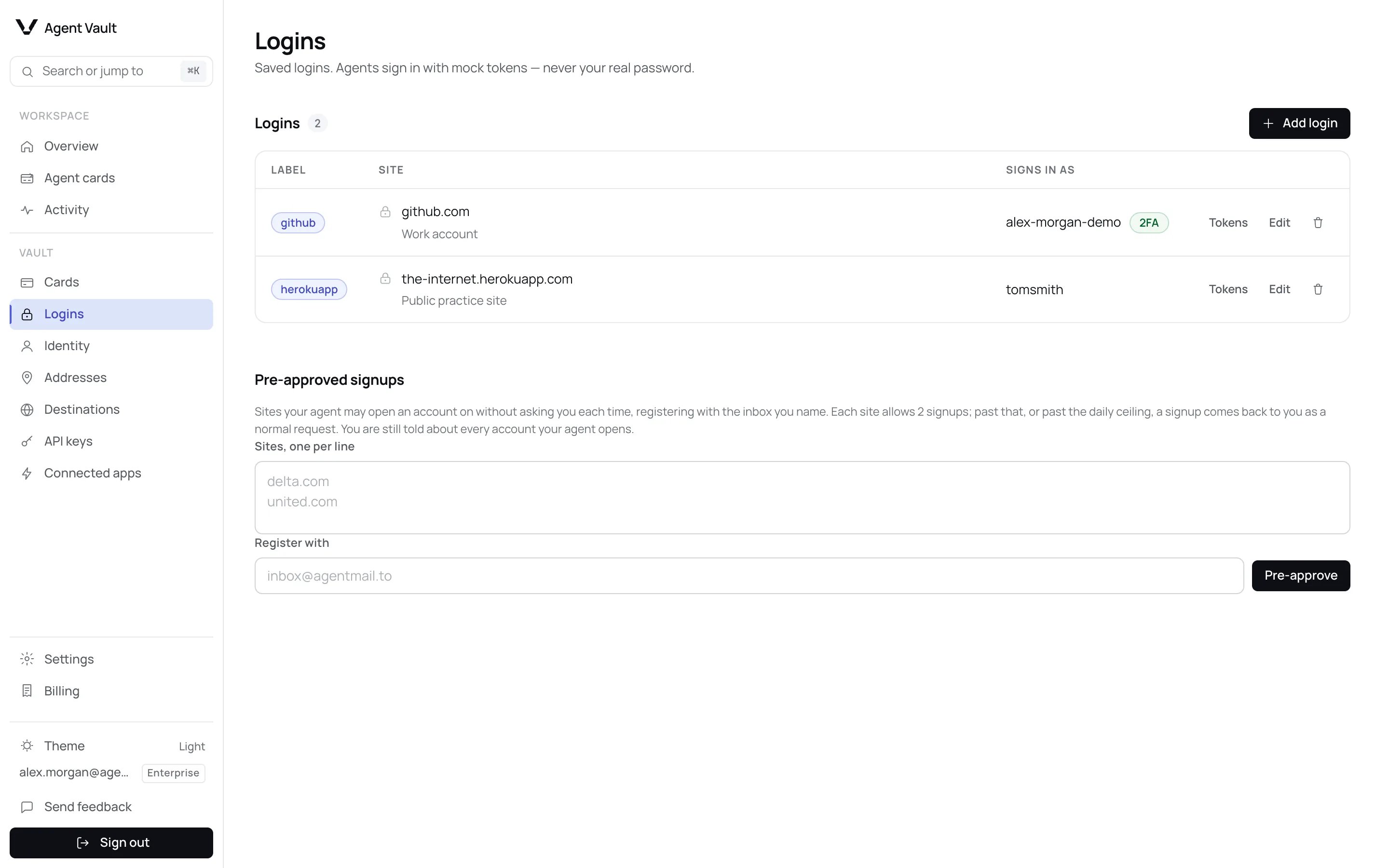
The Logins page with two saved logins.
Add a login
1
Click Add login
It is at the top of the Logins page.
2
Enter the Website
For example
github.com.3
Enter the Username and Password
Use the username or email you sign in with. Each must be at least 4
characters (the username counted after spaces at either end are removed).
A shorter one is refused with Username must be at least 4 characters.
or Password must be at least 4 characters.
4
Paste the Two-factor secret (optional)
Paste your authenticator app’s
otpauth:// link or manual-entry code.5
Click Add login
The login appears in the list with a Label, such as
github.Adding a login with a two-factor secret.
Other sign-in sites match exactly, with no subdomains. For example,
cursor.com signs you in at authenticator.cursor.sh.
Each line is reduced to its host, and a host listed twice counts once. A login
holds at most 10. With more, Add login or Save changes shows A login can have
at most 10 additional sign-in sites. and nothing is saved, not even your
other changes. Remove entries until 10 or fewer remain, then save again. A line
that is not a valid site is refused the same way, with a message naming it.
Two-factor codes
With a secret stored, the login shows a 2FA chip and your agent completes authenticator-app codes on its own. Neither you nor the agent sees the secret or the code. Agent Vault derives the current code from the secret and hands it to the proxy, which types it into the site, so only the proxy and the site receive the code. Once stored, the secret itself never leaves Agent Vault’s backend. When your agent sets up two-factor on a site (below), the site’s page shows the new secret to the Agent Vault proxy, which reads it and sends it to the backend to store. The agent does not receive it.
When a site needs a method on the right, your agent passes the step to you. See
Verification handoffs.
Your agent can also store the secret itself while setting up two-factor on a
site. Agent Vault then tries to notify you. The notification is best effort, so
check this page: a login with a stored secret shows the 2FA chip. See
Two-factor security.
Edit a login
Click Edit on the row, change what you need, then click Save changes.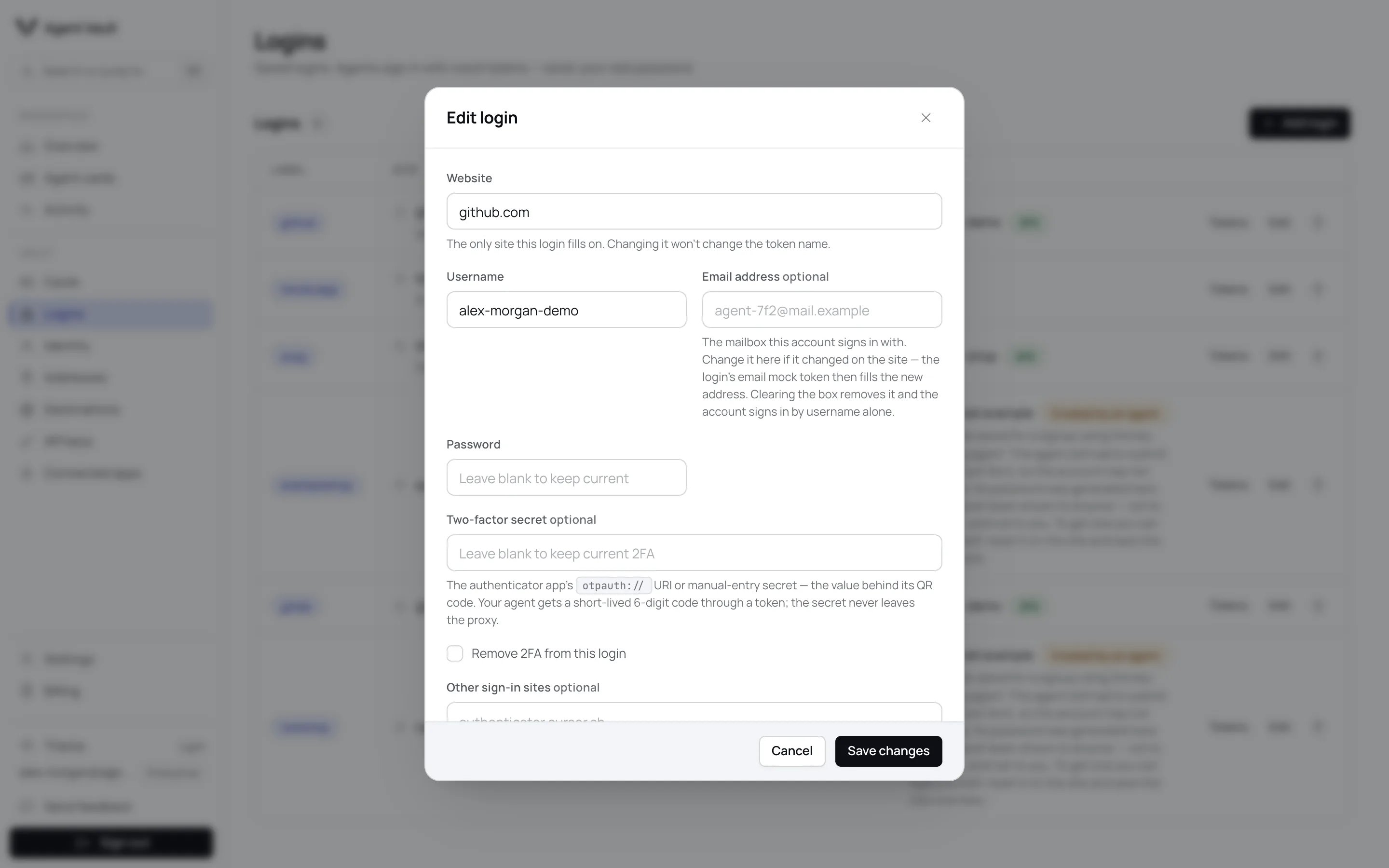
Editing a login.
- Leave Password blank to keep the current one. Change it on the site first.
- Leave Two-factor secret blank to keep it, or tick Remove 2FA from this login.
- Email address is required when the login has no username.
See a login’s tokens
Click Tokens on a row to copy the placeholders your agent types: Username, Email, Password and, with a secret, 2FA code (TOTP).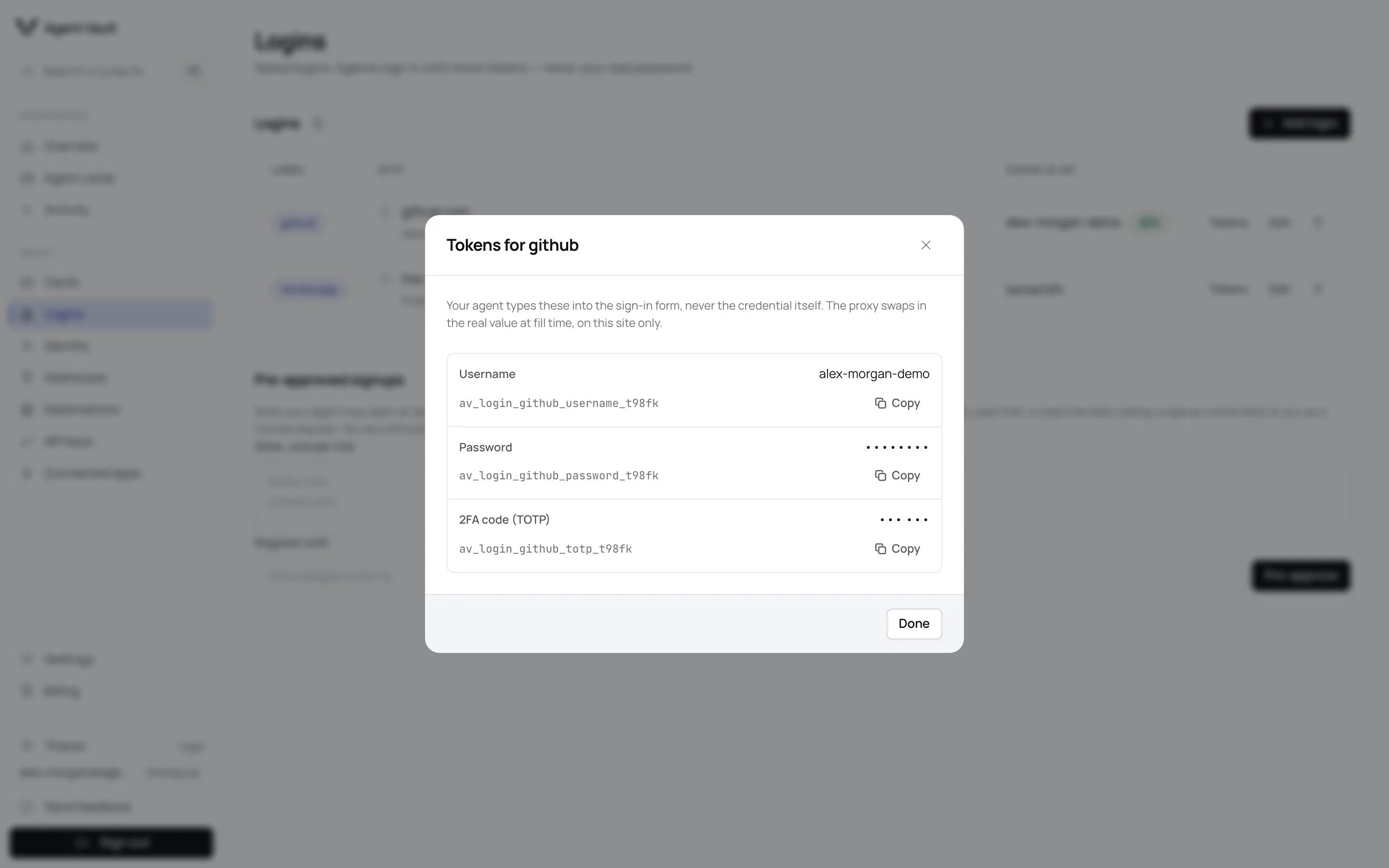
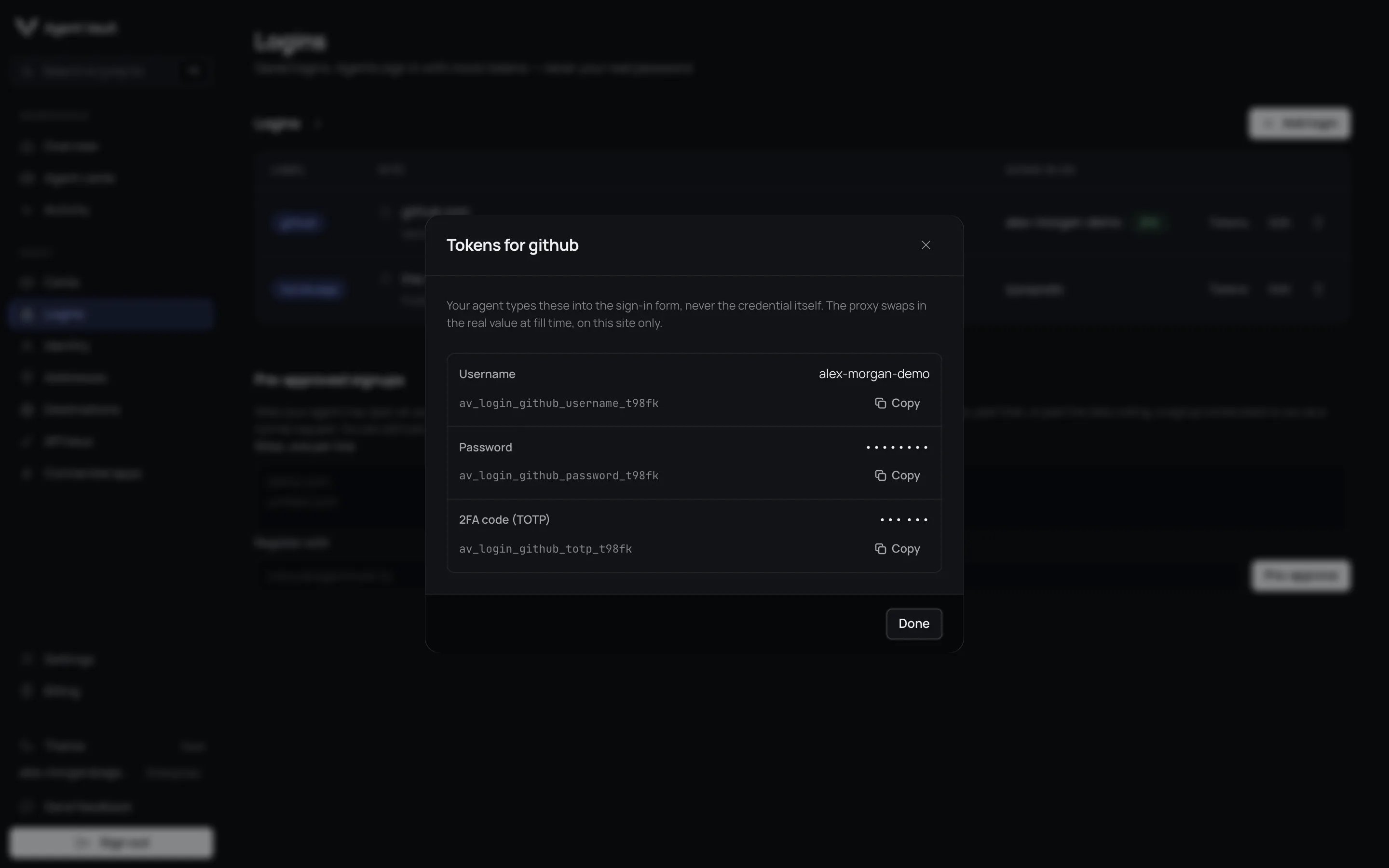
The tokens for one login.
Approve an agent signup
An agent whose API key allows it can ask to create an account for you. The request appears at the top of the Logins page.

A signup request waiting for your decision.
1
Read the request
It reads Your agent wants to sign up for the site, with the key, email
and password rules.
2
Click Approve or Deny
On approval, the vault generates a password. Neither you nor your agent ever receives it: it is stored encrypted, and Agent Vault decrypts it only for a fill, when the proxy types it into the site.
Pre-approved signups
Pre-approve a site when you want your agent to open an account there without asking you each time. You choose the site and the exact email it registers with.1
Find Pre-approved signups
It is a section on the Logins page, below your logins.
2
Enter the sites
Type them into Sites, one per line, for example
example.com. You can
add up to 100 at a time, and the list holds up to 300 sites. See
Setup ceilings below.3
Enter the inbox
Type the email your agent should sign up with into Register with.
4
Click Pre-approve
Each site appears in the list with Registers with and the email, and how
much of its allowance is used, such as Not used yet or Used 1 of 2.
www. is ignored,
but a subdomain is a different site, and so is another address, including the
same address with a +tag. Adding a listed site again with a different email
replaces the email and resets its count.
When your agent asks to sign up on a listed site with that email, the login is
created at once, with no request for you to approve. Everything else still
applies: the API key needs the signup permission, the key’s own login limits and
the 500-login ceiling still count (all your logins count toward it, including
ones you added), and Agent Vault still tries to notify you of every account your
agent opens.
Two ceilings keep this bounded. See Limits.
- 2 signups per listed site. The count resets only when you remove the site and add it again, or save it with a different email.
- 60 signups per account in a 24-hour window, by default.
login_limit and no request reaches you.
To stop pre-approving a site, click Remove on its row. Signups there ask you
first again. Logins already created through it stay: delete them from the list
above if you no longer want them.
Setup ceilings
Two more ceilings apply when you add sites to the list. Each one refuses the whole add withsignup_preapproval_too_many, and nothing from that add is
saved. The message appears under the form, and your text stays in Sites, one
per line so you can fix it.
Only a new site counts toward the 300. A site already on the list, whether you
enter it with the same email or a new one, does not.
Delete a login
1
Click the trash icon on the row
A confirm button appears.
2
Click Delete login
The password and any two-factor secret are removed.
What happens when…
For developers
Limits on agent-added logins and signups are on Limits.
Next: Sign-in guide to see how your agent signs in with a saved login.