

Before you start
- A login in the vault with its website set. The account holder adds one on Logins, or the agent opens one through agent signup.
- An API key whose scope includes that login.
- A proxy session on the site’s sign-in page.
Sign in
1
Find the login for this page
get_token_catalog with the page URL. A login matches its website and subdomains, plus any extraWebsites exactly. Fields are in Token catalog.An empty logins is not always “no account”. A login on a sibling host appears in relatedLogins: go to that host and ask again. Both lists empty means no login for this site is visible to this key. A key limited to Only selected logins never sees logins outside its selection, so the account may already have one here. Before you open an account, have the account holder check Logins and, if one exists, add it to the key’s access on API keys.2
Pick the identifier token
Choose from what the field asks for, read from its visible label and its
type. Do not go by its name or id: many sites call an email field username.tokens.username is absent until a username is set, so a login opened with create_login usually signs in with tokens.email. A login the account holder saved by hand starts with a username, and has tokens.email only if they add one. That username may be their email address or a handle, and you cannot tell which, so never fill it into a field that requires an email. The account holder can add an email to the login on Logins, and the catalog then carries tokens.email. If the form asks for a handle and the entry has only tokens.email, ask the account holder rather than guessing.3
Fill the identifier and password
Email-first sign-ins (Microsoft, Okta, Google) show no password field until the identifier is submitted. Wait for a visible password field, because these pages often keep a hidden one in the markup.
4
Fill the authenticator code, if the login has one
An entry with The backend derives the current code from the stored secret, and the proxy types it. Submit promptly: a code lasts one window, usually 30 seconds. SMS codes, email codes and passkeys belong to the account holder (see whose second factor it is).
hasTotp: true carries tokens.totp. Fill it like any field:5
Confirm you are signed in
Race a signed-in marker (an account menu) against the site’s error element: over MCP,
get_session_outcome with successSelector and failureSelector, and no confirmsCheckout. Never use recordOutcome() here, or a failed login reads as a purchase.When a login submits and nothing obvious happens
You are neither signed in nor shown an error. Do not conclude the credentials were wrong. Screenshots cannot help: a token was filled, so every capture is black.1
Race the markers once more
If neither the signed-in marker nor the error appears, the result is inconclusive. Say so.
2
Look for a code field directly
detectChallenge() returning { detected: false } means “matched no known pattern”, not “no challenge”. Look for input[autocomplete="one-time-code"], or a field whose name or id contains otp, one-time or passcode.3
Require the wording in the same form
Sign-in apps often keep a dormant code input on the page, and A bare
:visible still matches one with opacity: 0. Scope the wording to the field’s own form:*Code or pin match is not evidence: postalCode and couponCode are ordinary fields.4
Test with a click
click runs Playwright’s full checks, which a dormant field usually fails. press only needs the element attached and enabled, so it proves nothing. A failed click is strong evidence, a successful one weak.Whose second factor it is
Filling an authenticator code into an SMS prompt wastes an attempt and can trip the site’s retry limit.
What the account holder sees
For an authenticator step the agent answers, nothing. For anything else, only the account holder can finish:- If
detectChallenge()reportsotpwithoutambiguousOnly, request a challenge handoff. They tap Open live checkout and type the code on the live page. - If you found the prompt only through the checks above, tell the user their second factor needs them.
requestChallengeHandoff()refuses a prompt its own detection cannot see.
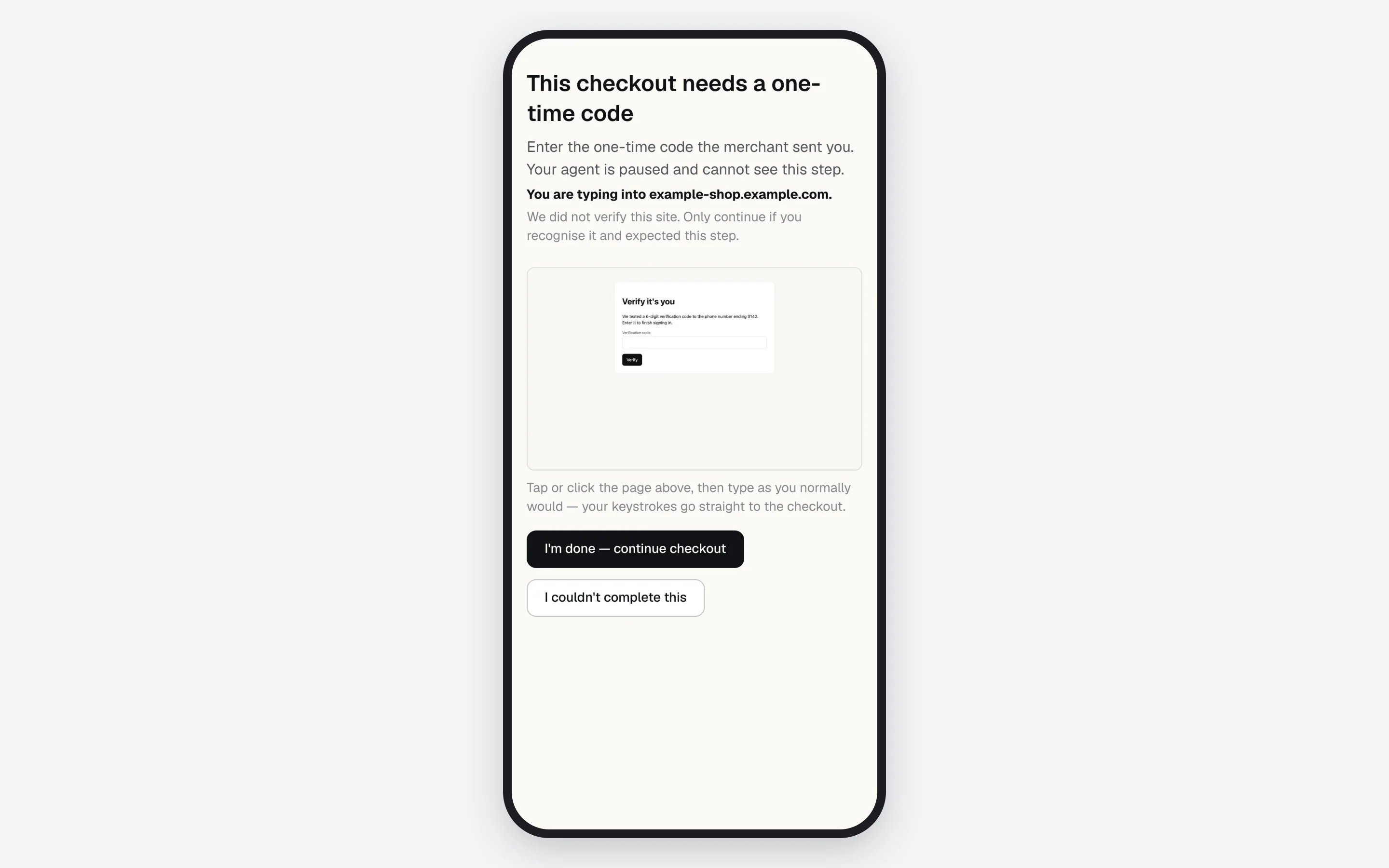
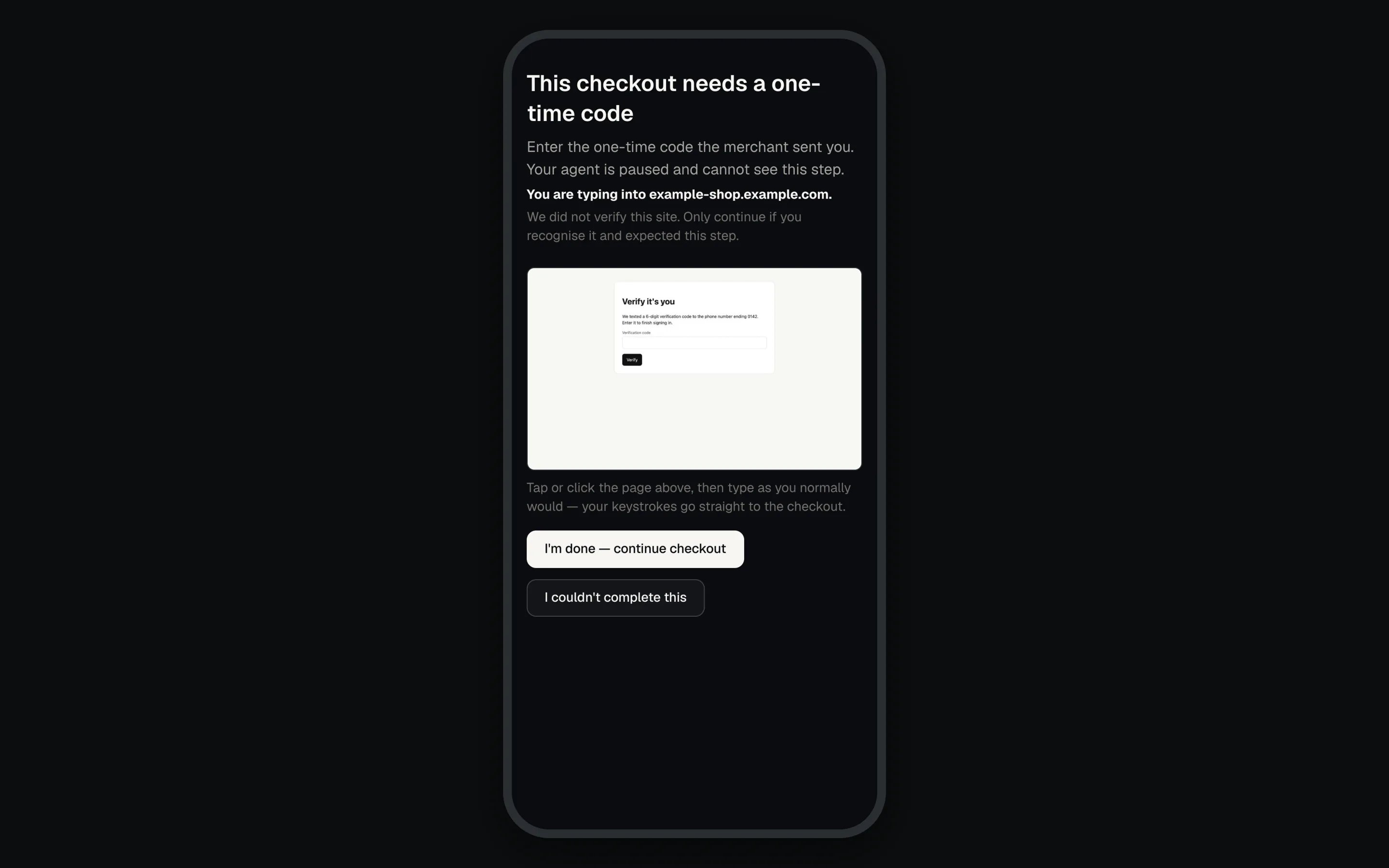
A one-time code step handed to the account holder's phone.
If something goes wrong
More in Troubleshooting and Error codes.
Next: Let an agent open an account for a site that has no login in the vault yet.