

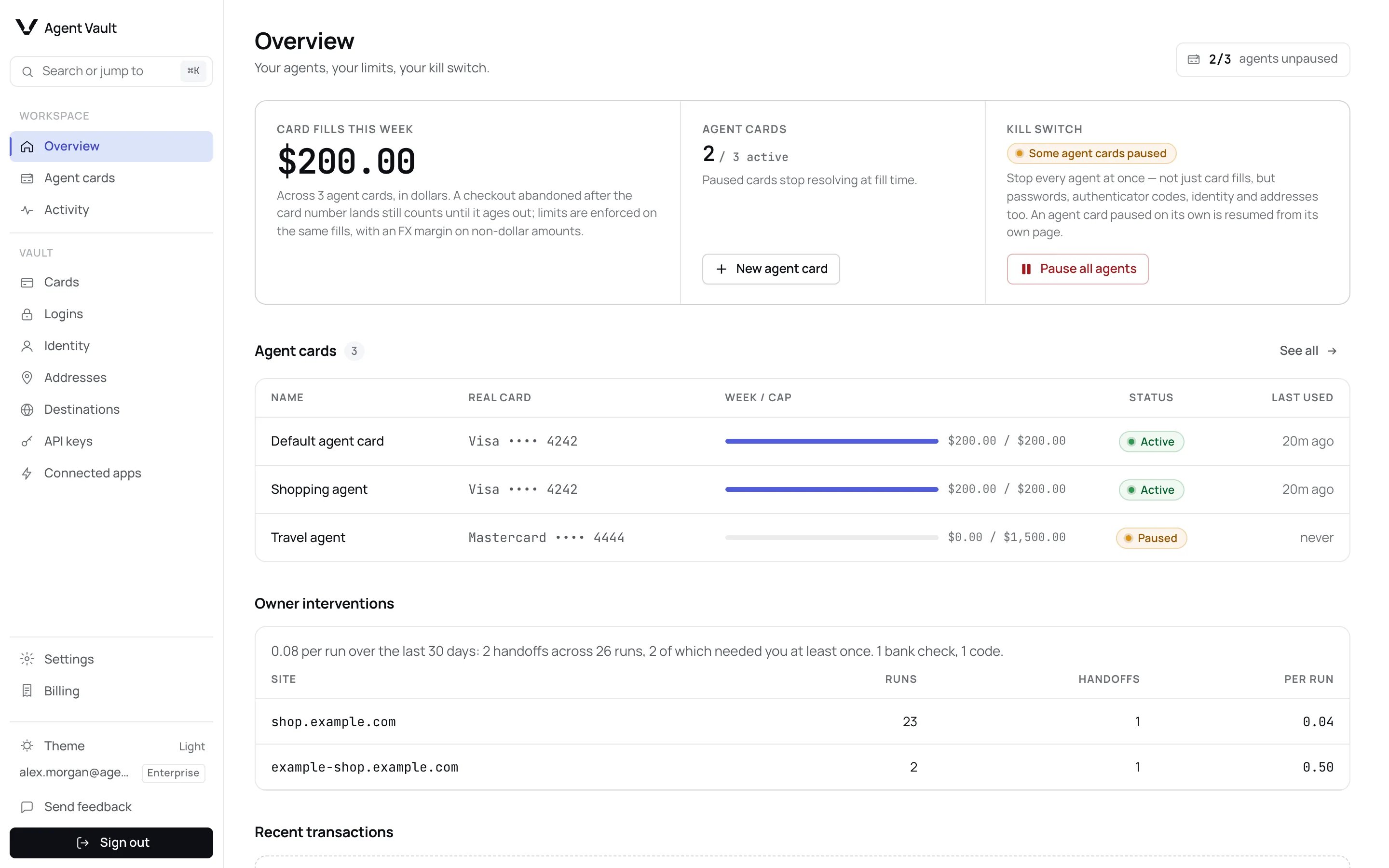
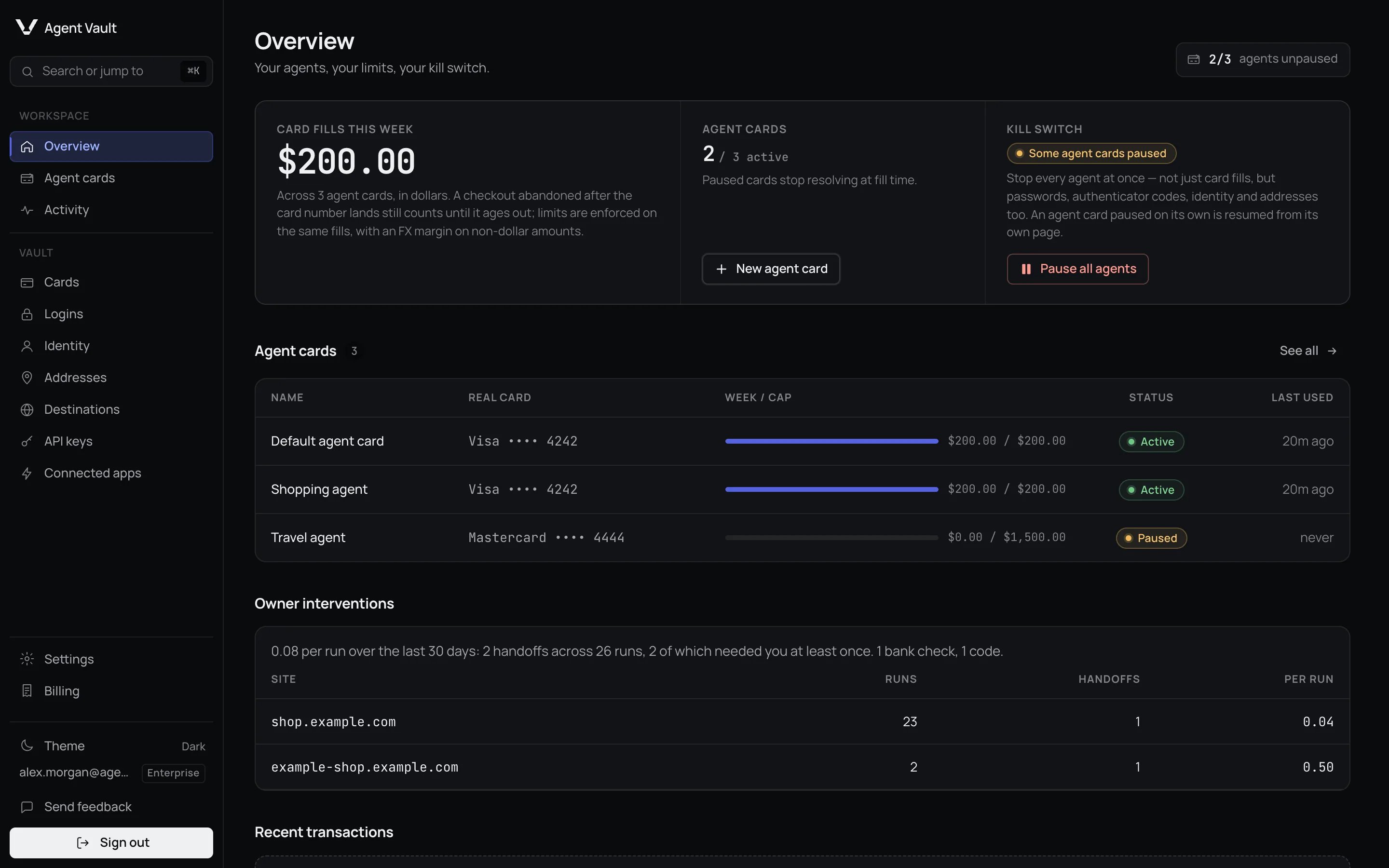
The Overview page once setup is complete.
Connect your first agent
A new account opens on the Connect your first agent checklist. Each step links to the page where you do it.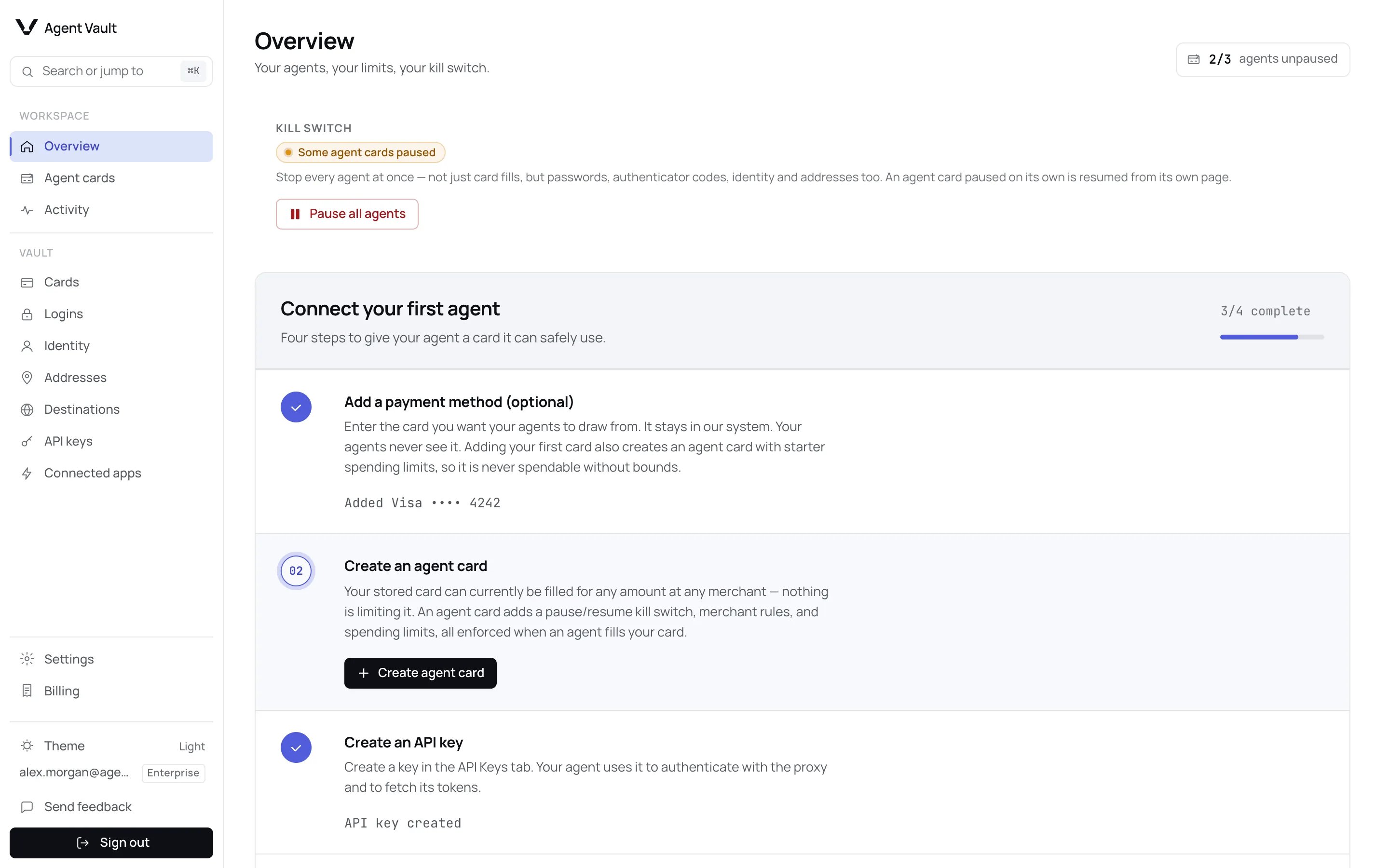
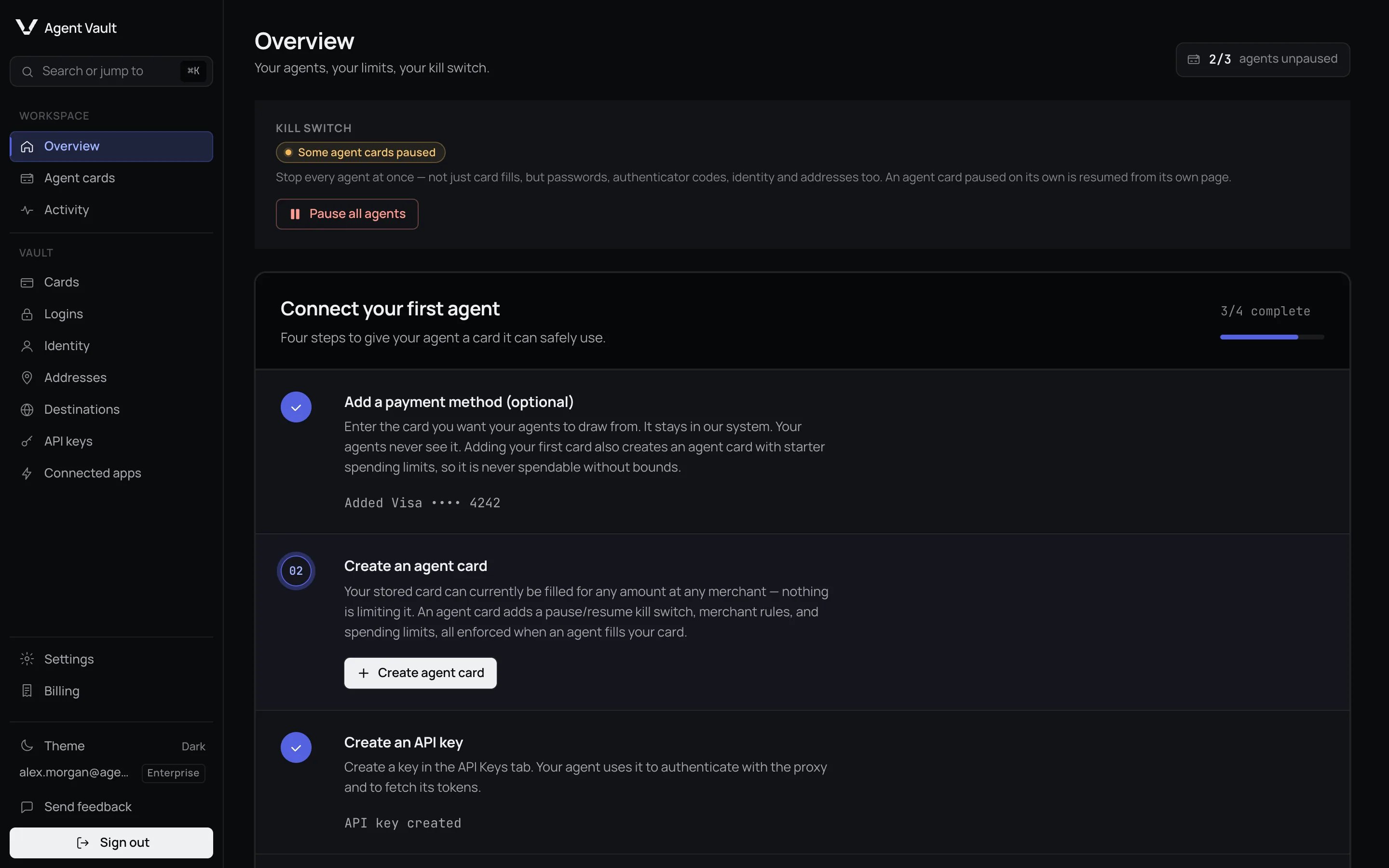
The checklist reopens at Create an agent card when a stored card has no limits.
1
Add a payment method (optional)
Click Add card. Skip this if your agent only signs in to sites.
2
Create an agent card
Your first card creates one for you, so this is usually already done.
A card you add later gets none: click Add limits on it.
3
Create an API key
Click Create API key. Your agent connects with it.
4
Set up your agent
Pick Your agent framework, then click Copy agent instructions and
paste them into your agent.
Your weekly summary
Card fills this week counts when a card number is typed, not what the
merchant charged, so an abandoned checkout still counts. Check your card
statement for real charges. See Spend is fill intent.
It adds up spend on the funding cards your agent cards control, counted once per
funding card. A fill on a card marked No limits on
Cards is not included, because no agent card controlled it.
It is still recorded, and appears on Activity as Card
entered. It stays out of the total even after you add an agent card to that
card later.
Stop every agent at once
Use the Kill switch if an agent does something you did not expect.1
Click Pause all agents
The panel changes from All agents active to All agents stopped.
2
Click Resume all agents when you are ready
Your agents carry on without reconnecting.
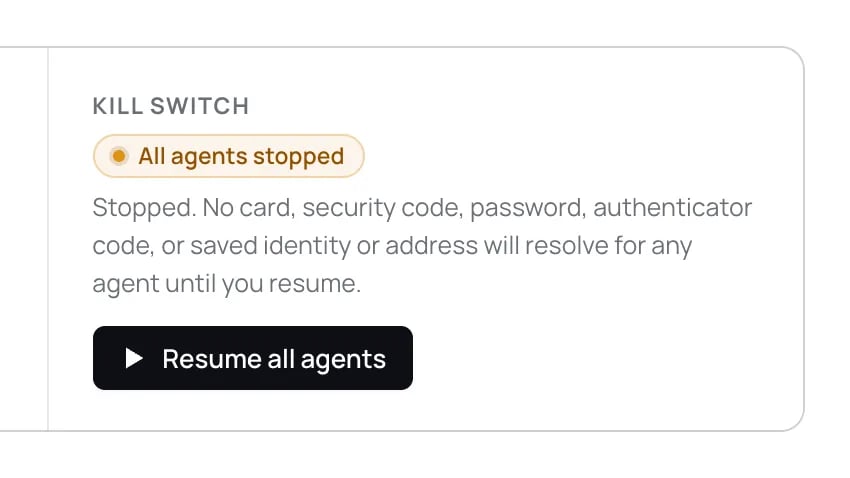
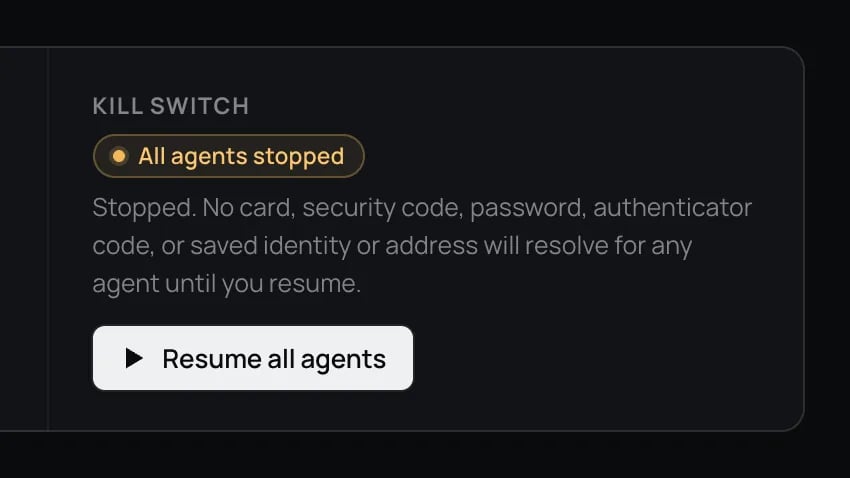
The kill switch after Pause all agents.
What happens when…


The step shown when a card has no agent card controlling it.
Find a page
Press ⌘K (Mac) or Ctrl+K, or click Search or jump to, to go straight
to a page. Theme, Send feedback and Sign out sit at the bottom of the
sidebar. A feedback message can be up to 2,000 characters, and you can send 10
in any 24 hours. Past that, the form says That is a lot of feedback for one
day. Please try again tomorrow. You can send again 24 hours after the oldest of
those 10 messages, not at midnight.
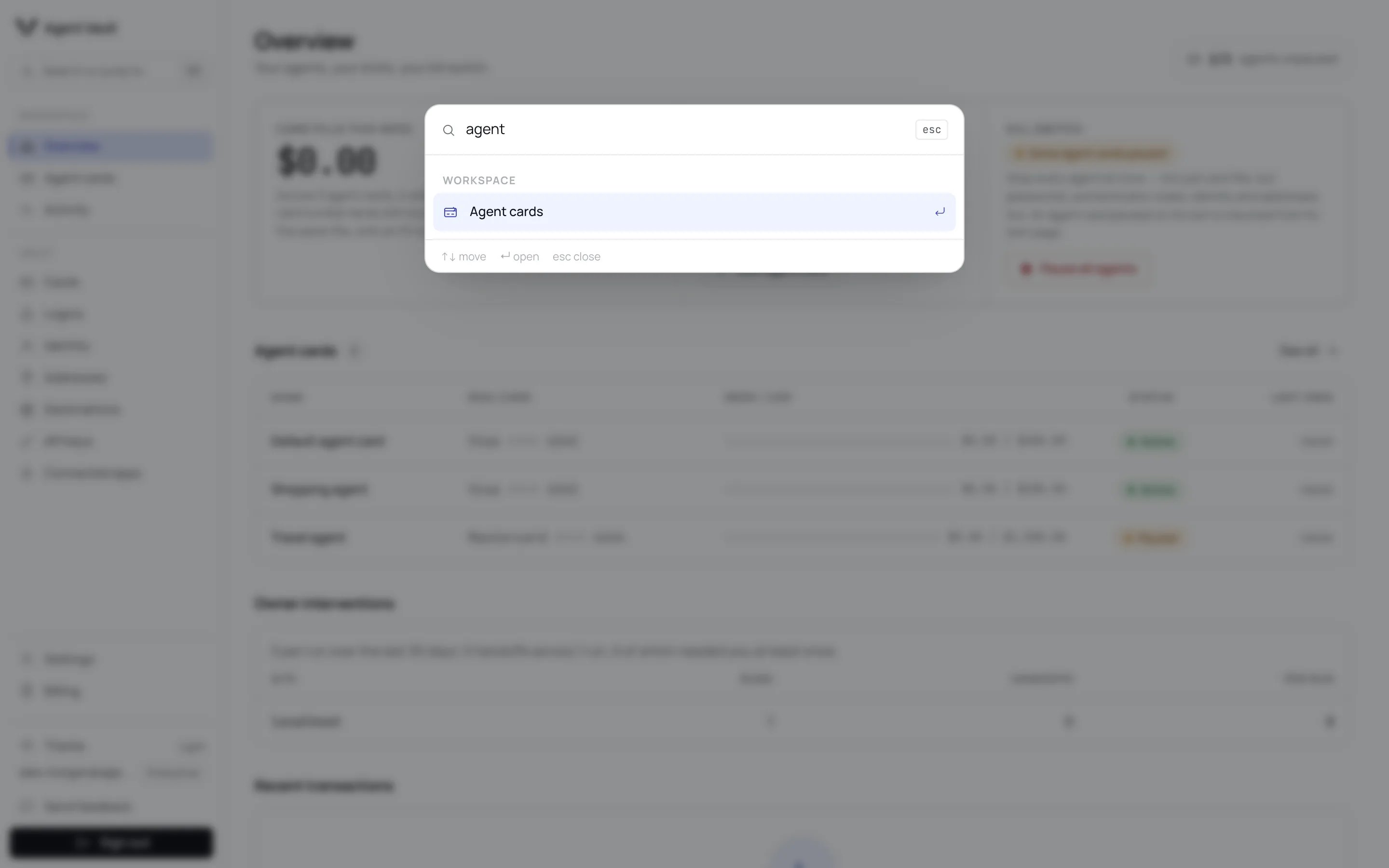
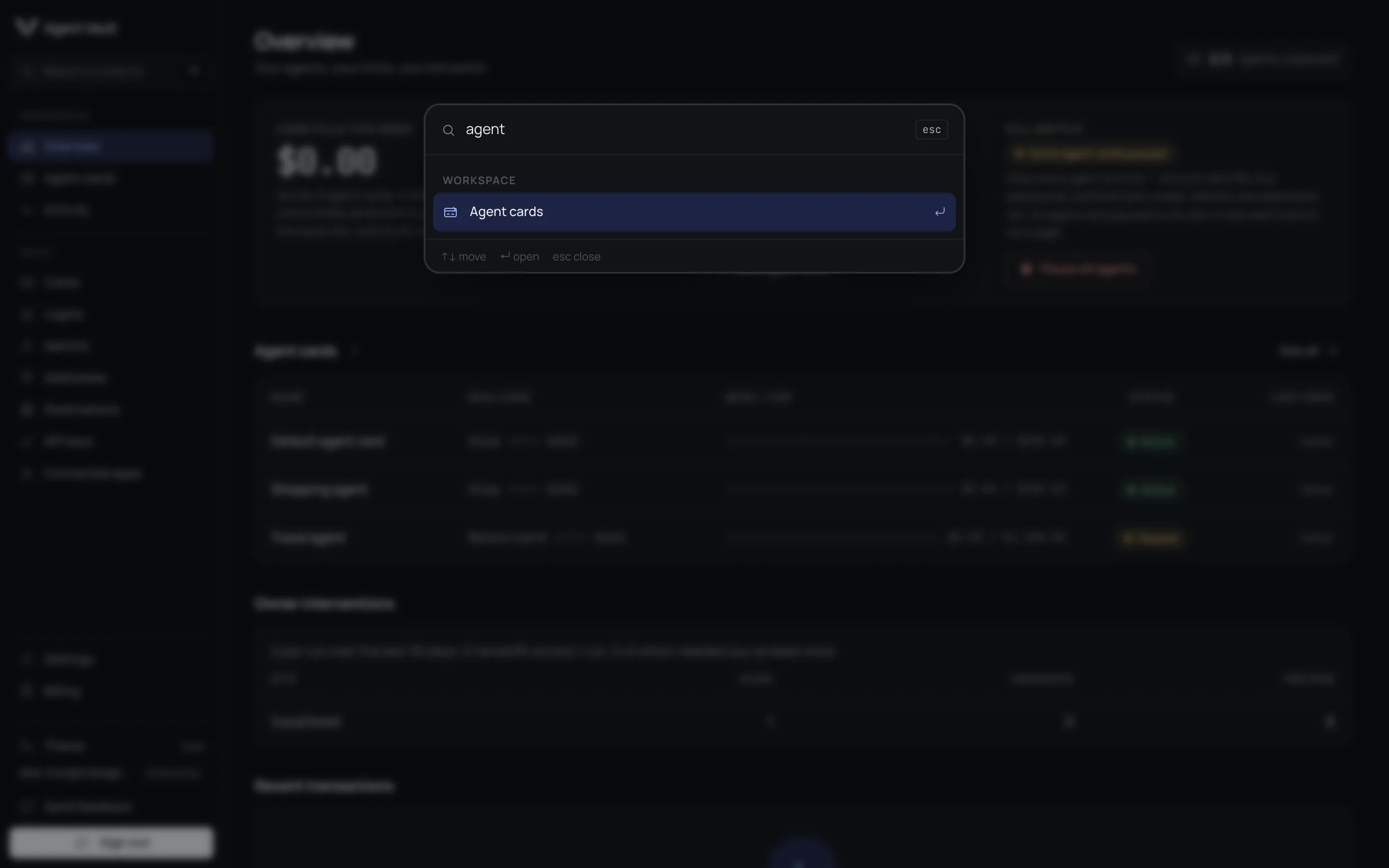
Search or jump to, opened with ⌘K.
What the dashboard never shows
Full card numbers, card security codes, login passwords and two-factor secrets never appear. You see a card’s brand, last four digits and expiry, and a 2FA chip on a login. You can copy mock tokens, the placeholders your agent types instead of real details. See the glossary.For developers
Next: Agent cards to set how much each agent can spend.