

Before you start
- An API key for the agent, with Fill a test card instead of my card cleared.
- A card in the vault, governed by an agent card with the limits you want.
- The Playwright SDK or the MCP server, connected to a proxy session.
- The card’s tokens:
listTokens()in the SDK,get_token_catalogover MCP.
When the account holder is involved
Four different prompts can pause a checkout. Know which one is waiting before you retry anything.
Each prompt shows as a dashboard banner. It also goes out as an email, desktop notification or Background alerts notification on each channel the account holder turned on, but only while the prompt’s switch under Needs you is on: A purchase needs my approval (purchase approvals and new sites), A checkout needs my card security code or A checkout needs me to clear a bank or verification step. With the switch off, only the banner appears. Alerts are best effort. See Approvals and notifications.
A purchase approval happens automatically during the card fill. A handoff happens only when the agent asks for it. If an approval is waiting,
requestChallengeHandoff() finds no challenge and does not help.Run the checkout
1
Check the registry for the store
A store whose guest checkout is PayPal-only or wallet-only never takes a card.If the account holder named a product but no store,
buyableMerchants() lists stores that work, verified first, with dead ends removed.2
Snapshot the page before the first fill
After any token fill, snapshots and frame listings are refused and screenshots turn black. Look at the product page, cart and empty form now with
page.snapshot(). Afterwards you have observe(), count() and detectChallenge(). See Redaction.3
Dismiss the cookie or consent banner
It intercepts clicks. Click “Accept all”, “Accept” or “Got it” first.
4
Add to cart and confirm the cart filled
Add-to-cart often does nothing when clicked too early. Load
/cart/, check for line items, and click again if it is empty.5
Clear any delivery or region gate
Large retailers hide the buy button until a delivery location is set, and the browser starts with an empty profile every run. Fill the location box from the address tokens (
av_addr_<label>_zip_<userId> and its _city and _country siblings). The registry reports a known gate as preconditions: ["delivery_location"].The first address fill on an unauthorized site can pause here for up to 15 minutes for a New site approval.6
Set the country first
Country selects often default to the UK, which then rejects a US ZIP. Select the country (
#billing_country on WooCommerce), wait for the page to refresh, then the state (#billing_state).7
Fill billing from the card's billing address
Address verification compares billing with the card, and a mismatched postcode declines the charge. The token catalog does not say which address is a card’s billing address:
TokenCatalogCard carries no address label or ID. Use the label the account holder gives you for that card, or ask them. An address typed while adding a card is labelled card1, card2 and so on, so do not assume a bill label exists.8
Accept the terms by clicking the label
The real
#terms checkbox is usually hidden. Click label[for="terms"] or label:has-text("I have read and agree").9
Point at the total if the page names it oddly
If the proxy cannot read the total, a capped card is refused with
checkout_total_unknown. Declare a hint on arrival: page.hint("order.total", { selector: ".summary__grand-total" }). See Page hints.10
Fill the card in order
Expiry and billing first, then the card number, then the security code with nothing in between. See the card fill order. This is where a New site, purchase approval or live CVV prompt can reach the account holder.
11
Submit once
If a 3DS, OTP or CAPTCHA step appears, hand it over with Handle challenges.
12
Confirm the order
Over MCP, race a success selector against a failure selector with
get_session_outcome, passing confirmsCheckout: true and the submitSelector you clicked. Then read get_run_report.In the SDK there is no race. Check the page yourself first: the success marker is present and the failure marker is absent. Only then call page.recordOutcome(), which records a confirmation as soon as you call it, even on an unconfirmed page. It accepts only an optional orderTotal. Then read browser.outcome().Either way, the merchant’s emailed receipt is the source of truth. See Confirming what happened.checkout-playbooks.md.
An agent checkout with the dashboard Activity page updating live.
The card fill order
Filling the card number checks the total against the account holder’s limits and, once approved, arms a one-shot authorization for the security code. The next action on the page spends it.
Look at the page between the number and the code if you need to. Do anything that acts on the page before the number.
One exception: a screenshot that returns
securityCodeAuthorizationReleased has released it. Fill the number again, then the code.
If expiry appears only after a number is typed, mark those controls cardField: true in fill_checkout and they move after the code. Any unmarked field between the number and the code gets the batch refused.
Stripe and other hosted card frames
After a fill,listFrames() and matching a frame by name or URL are refused with sensitive_data_blocked. Target the frame by CSS selector, and type with pressSequentially: Stripe Elements ignores value-only fills.
Secure card number input frame and its expiry and CVC siblings) with inputs cardnumber, exp-date and cvc.
Probe each input with count() before you fill the number. If no selector reaches visible card fields, report the variant instead of submitting blind.
What the account holder sees
The account holder gets a dashboard banner. They also get a Review purchase email and a desktop or Background alerts notification on each channel they turned on, as long as their A purchase needs my approval switch is on. See Approvals and notifications. The approval page names the agent card, the merchant site and the amount, with a redacted screenshot.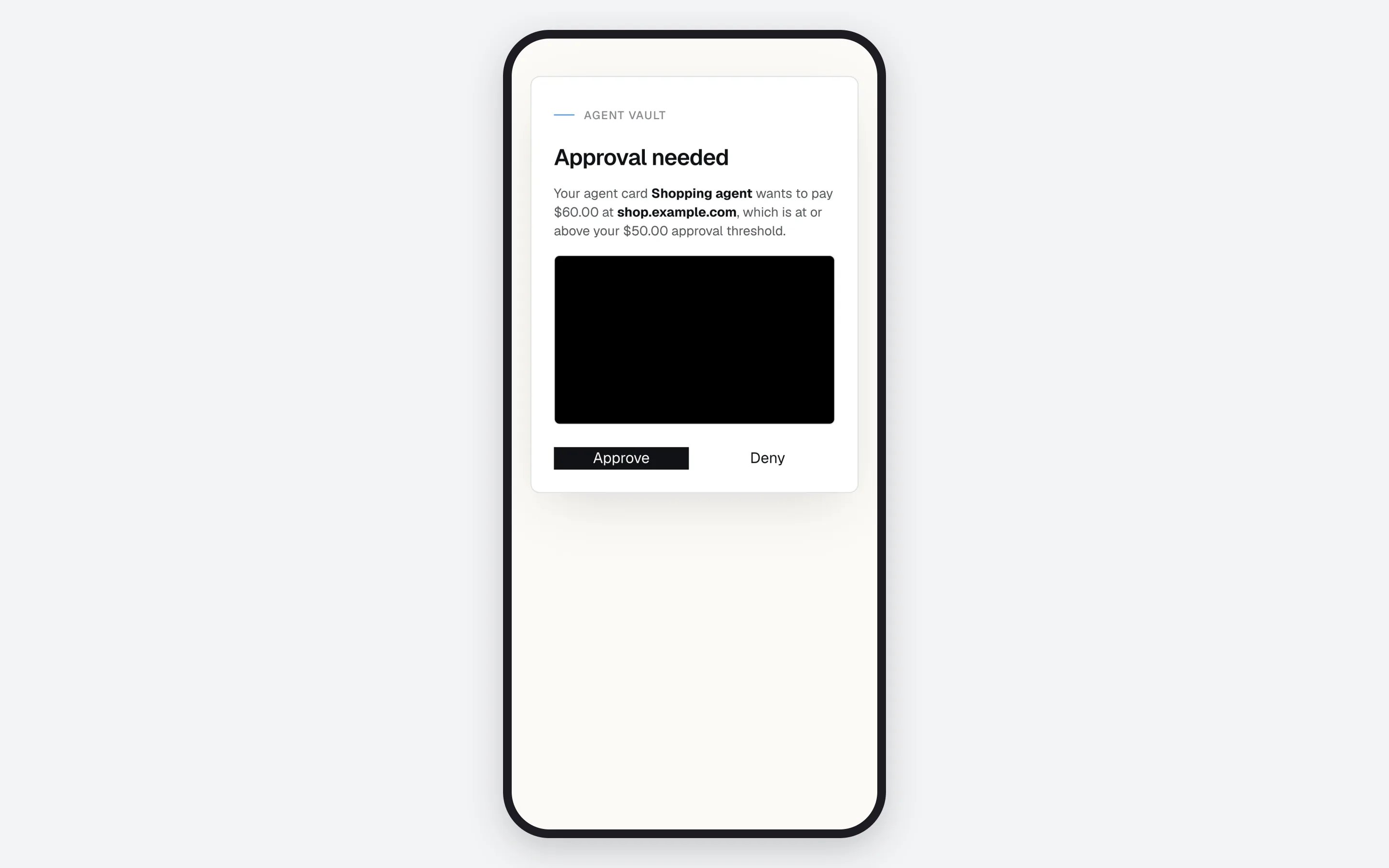
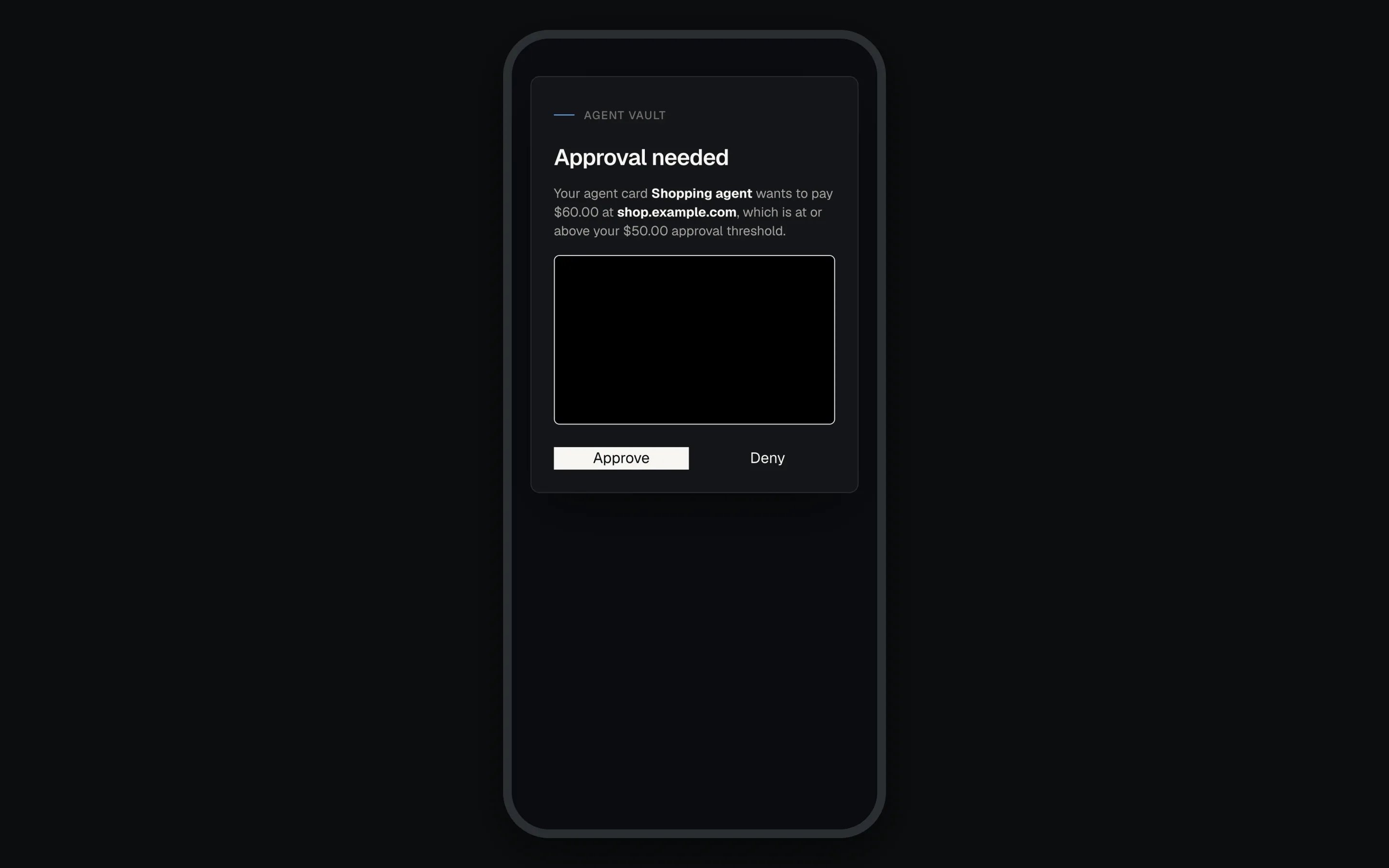
A purchase approval on the account holder's phone.
- Approve: the fill continues. If the total changed since, the agent gets
approval_deniedand a retry asks again. - Deny: the agent gets
approval_denied, and no real value is typed. - No answer: the agent gets
approval_timeout. A retry asks again.
If something goes wrong
Everything else, including
limit_reached and sensitive_data_blocked, is in Error codes and Troubleshooting.
Next: Confirming what happened to prove the order landed before you report it.