

Before you start
- The agent’s API key has the signup grant. The account holder turns on Let this key create and change its own logins on API keys. It is off by default.
- A mailbox the agent can read, for the site’s confirmation email.
- The site’s registrable domain, for example
doordash.com. - No login for the site is visible to the key: the catalog for the site’s URL has empty
loginsand emptyrelatedLogins. If the key is limited to Only selected logins, empty lists only mean no matching login is in its selection. Have the account holder check Logins first, and widen the key’s access on API keys if the account already has one, rather than opening a second account.
Open an account
1
File the signup request
create_login with the same fields.The handle’s status is usually pending. If the account holder has put this site and this exact email on their Pre-approved signups list, it comes back approved: the login already exists, so poll the requestId right away and the first answer carries the tokens. Pre-approval covers at most 2 signups per listed site and, by default, 60 per account in a 24-hour window. Past either ceiling the request comes back pending and waits for the account holder, as it does when another approval check fails. See Limits. Handle both.2
Wait for the decision
awaitSignupApproval polls for up to 15 minutes (timeoutMs) and rides out dropped connections and 5xx replies. Over MCP, wait_for_signup_approval waits 45 seconds per call, so call it until the status is final:3
Fill the signup form
fill_login takes confirmPasswordSelector for the second field.4
Read the confirmation email
Read the site’s email out of band. If the code goes to a mailbox you cannot reach, say so rather than looping.
5
If the site rejects the password, rotate it
Read the site’s stated rule off the page, then generate a replacement. Over MCP, call Rules:
rotate_login_password.minLength, maxLength, noSymbols, symbols and noRepeats. Pass only rules the page states. The vault generates 12 to 64 characters, so a minLength above 64 is refused with invalid_policy and a maxLength below 12 with password_too_short. The mock token stays the same, so fill it again.Only the API key that filed the signup request can rotate the password, and only within seven days of the login being created (the default; a deployment can set a different window). Any other key, or a later call, gets not_rotatable.6
Record the handle last
If the site asks for a username, type a plaintext one of your choice. Once the site accepts it, record it:Over MCP, call
set_login_username.Sending the same handle again is safe. A different one is refused with username_already_set.The same rule as rotation applies: only the key that filed the signup request, and only within seven days of the login being created by default. Any other key, or a later call, gets not_found.What the account holder sees
The request appears at the top of Logins as “Your agent wants to sign up for” the site. They also get a Review signup request email when email and their My agent creates or changes a login switch are on. The Signup approval needed page names the API key, site and email, describes the password, and offers Approve and Deny.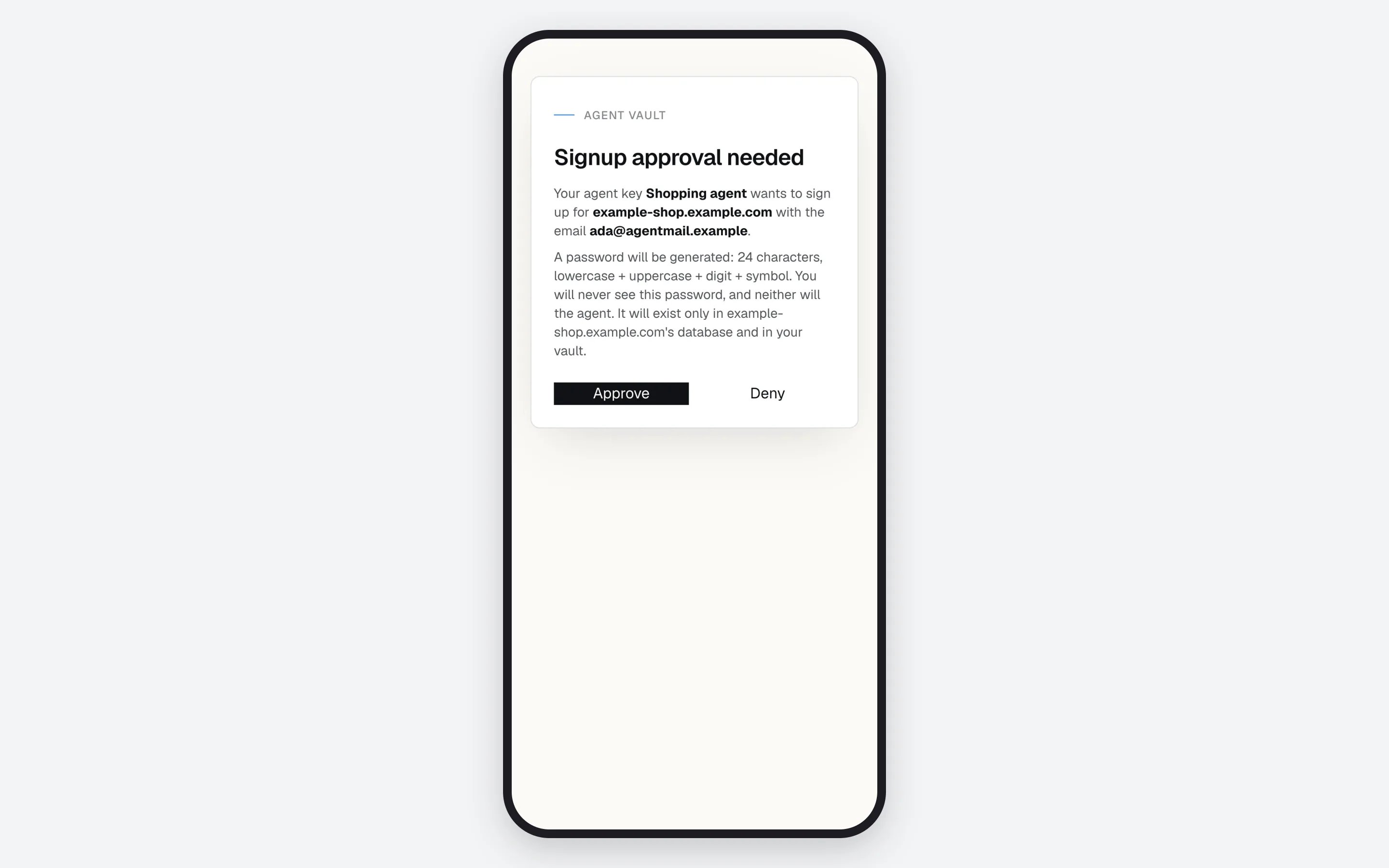
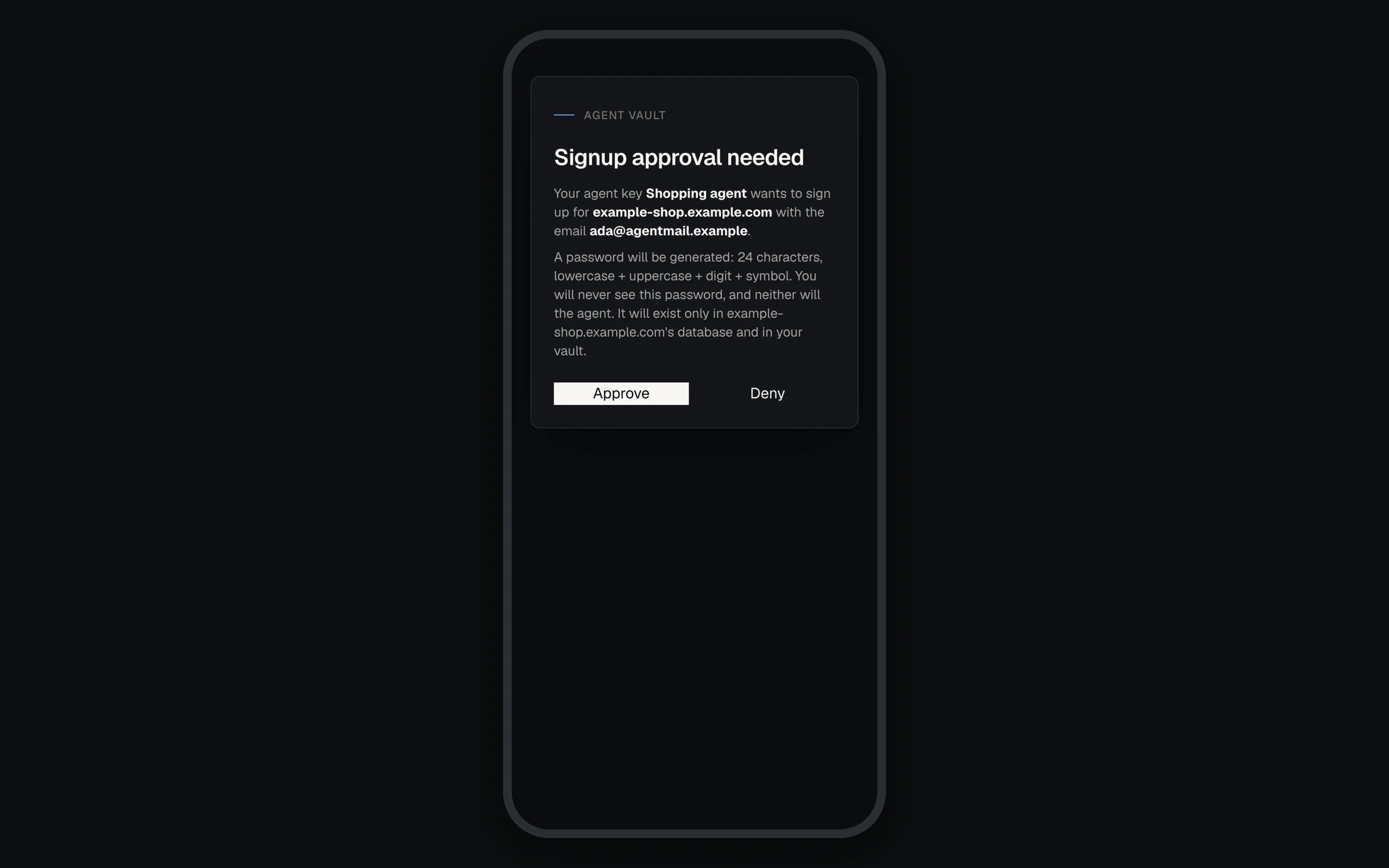
A signup request on the account holder's phone.


A pending signup request from the Logins page.
- The key is limited to selected logins and its list holds 50 or more. Untick logins under Edit access until it holds fewer than 50, or switch it to All logins, then approve.
- The key lost the signup grant. Turn it back on, or deny the request if the key was revoked.
- The account reached 500 logins while the request waited, or the credential-change budget is spent. That budget is 25 changes in a 24-hour window by default, and it resets 24 hours after the first counted change, not at midnight. All logins count toward the 500, including ones the account holder added. The holder’s own Add login is not capped, so a large vault leaves less room, or none, for agent signups.
pending.
An agent asks, the account holder approves, the login appears.
If something goes wrong
Every code, with retry advice, is in Error codes. Caps on pending requests and on the logins an agent may add are in Limits.
Next: Sign in to a site to use the new account later.