


A pending purchase approval at the top of the dashboard.
What can need you
Every request except an agent signup shows as a banner at the top of each dashboard page, whatever your notification settings. Email, desktop notifications and background alerts reach you only when that channel is on and the request’s switch under Events is on. The link in the email works without signing in. See Keep request links private.
All but the agent signup expire within 15 minutes, so turn on
Background alerts on your phone. Email and background
alerts reach you with no dashboard tab open. Desktop notifications do not.
Purchase approvals
You see these when an agent card has Require confirmation above set. See Agent cards. You can also see one on a card with spending limits and no threshold, when the page’s total is over a limit and your agent’s is not: see When your agent and the page disagree on the total.1
Read the request
The banner reads A purchase is waiting for your approval. It names the
agent card, the site, the amount when known, and why it was held.
2
Click Approve or Deny
Use the banner, or the Approval needed page the email links to. That page
also shows a screenshot of the checkout with your details blacked out. A
screenshot larger than 768 KB is left out, and the request still appears
without it.
Approving a purchase from the emailed link on a phone.
Agent Vault cannot prove an unreadable total is under your threshold, so it asks.
An agent card with no threshold asks only when your agent and the page disagree
on a total that is over a spending limit (below). If part of the order is paid
another way, such as a gift card, the request says so.
When your agent and the page disagree on the total
Your agent can say what it expects to pay. When that differs from the total Agent Vault read on the page, the request shows both, for example Agent says 108.00. Each is in its own currency. When your agent’s total is under half the page’s, the page may have read the wrong price, such as an annual price for a monthly plan. You then choose:
Deny if the page’s total is the real one. Approving at your agent’s total covers
one fill on that site. If the page’s total goes up before the card is filled,
or a limit is reached in the meantime, the fill is refused.
After you decide
Once settled, the page shows Approved, Denied, Request expired or
Request timed out.
New-site approvals and destinations
Your card, security code, identity and addresses fill only on your destinations. The first time your agent tries a new site, the banner reads A new site is waiting for your approval. You have about 15 minutes to click Approve or Deny. If the same checkout runs on other sites and its recipe has been checked by a person, one approval covers all of them. Otherwise each site asks you separately. See When one checkout runs on several sites.Security code requests
Agent Vault never stores your card’s security code, so a checkout that asks for it needs you.Not every deployment supports live security code entry. On a deployment
without it, a checkout that needs the code fails at once with
cvv_entry_required. No request, banner, email or entry page is created, and
nothing you do can supply the code. See CVV policy.1
Open the request
The banner reads Your agent needs your card security code. Click Enter
security code, or open the emailed link.
2
Type the code
On the Enter your security code page, type it into Security code
(CVV). It takes 3 or 4 digits. Anything else shows Enter the 3- or
4-digit security code from your card.
3
Click Submit security code
The page shows Security code received.
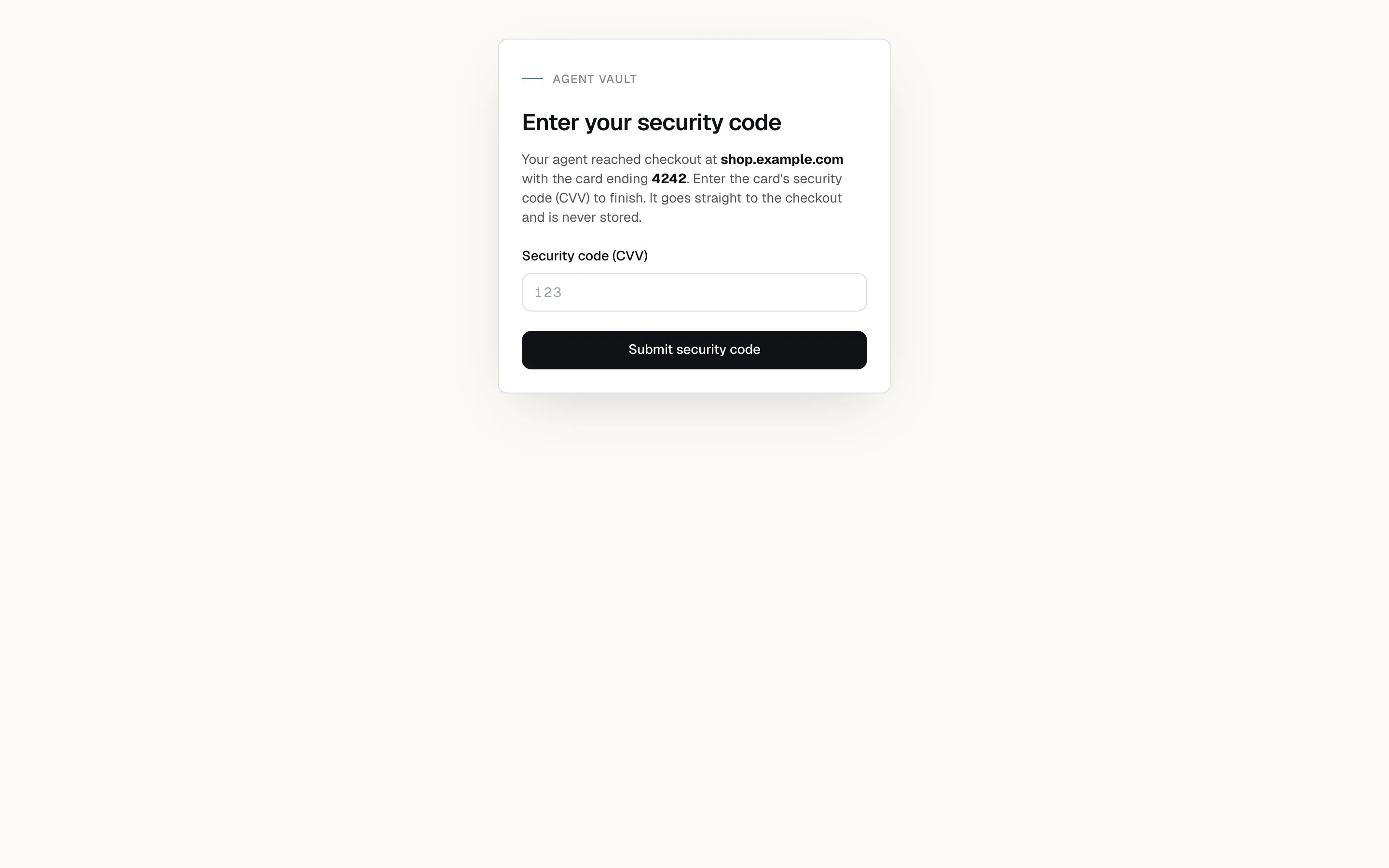
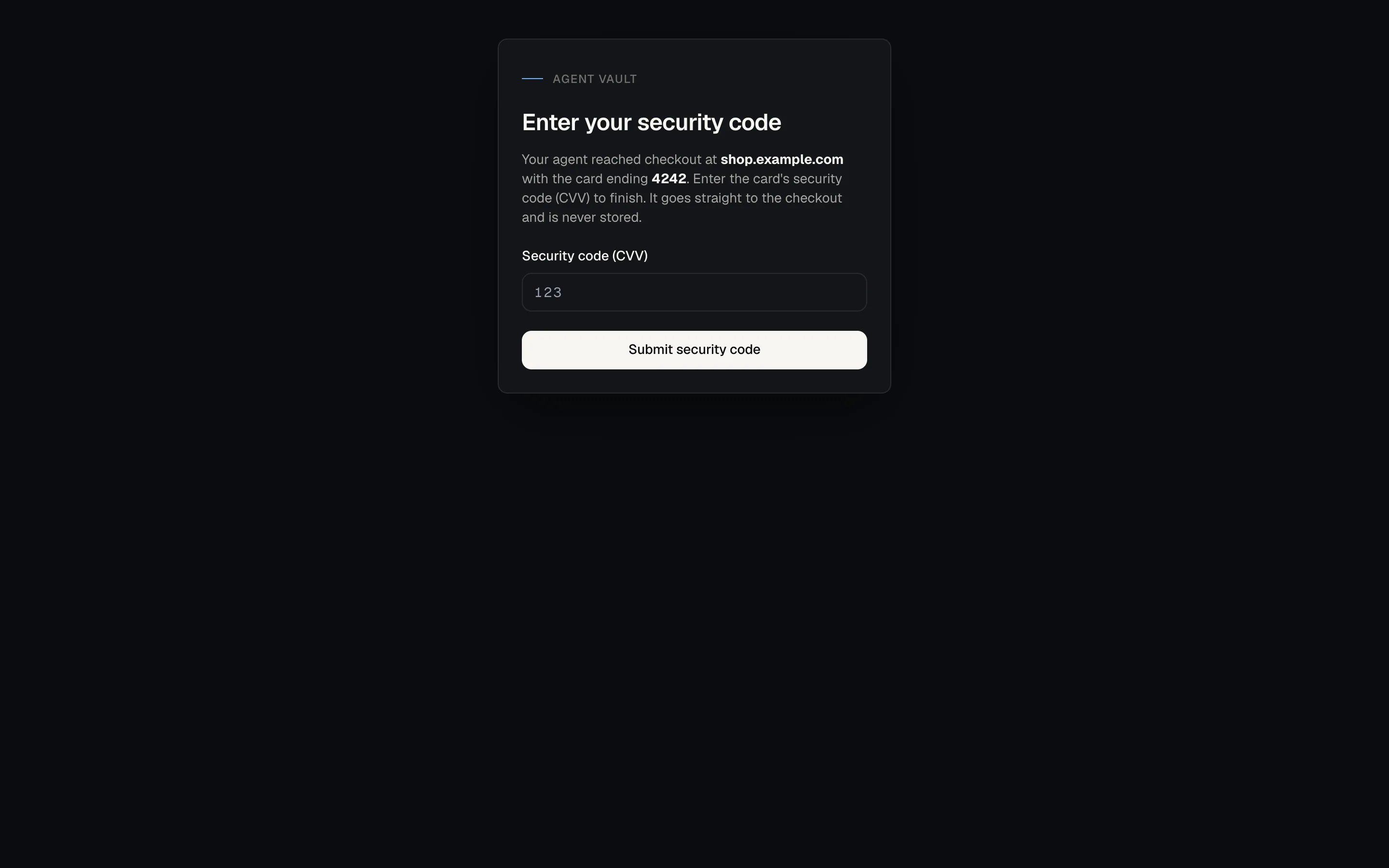
The security code page.
Verification handoffs
Your agent hands you the live checkout when it reaches your bank’s check (3-D Secure), a one-time code or a CAPTCHA.1
Open the live checkout
The banner names the step, for example Your bank needs to verify a
payment. Click Open live checkout, or open the emailed link.
2
Complete the step
Click the live page and type as usual, or approve the payment in your banking
app.
3
Hand the checkout back
Click I’m done to let your agent continue, or I couldn’t complete
this to stop.


A verification step handed to you on the live checkout page.
Notification settings
In the sidebar, under Account, click Settings.

The Events section of notification settings.
The banner is built from the waiting request itself, so it appears even if
every other channel fails. Email, desktop notifications and background alerts
are best effort. An email that asks you to act is retried a few times if sending
fails; other sends are not retried. Do not rely on a single channel.
Set up this device
1
Open Settings on your phone
Use the browser you normally use.
2
Turn on Background alerts
Under This device. Allow notifications when the browser asks.
3
Repeat on each device
Each browser is set up on its own.
On iPhone and iPad, add the site to your home screen first (Share, then
Add to Home Screen) and open the dashboard from there. If your browser blocks
notifications for the site, allow them in its site settings.
Events
Each switch controls one event across every channel you have turned on. With a switch off, no channel sends that event, even a channel that is on. Background alerts carry only the events listed under Set up this device. Turning on a switch for any other event does not send it to your phone. These switches do not change what an agent card’s webhook receives.What does My agent's traffic didn't use my connection mean?
What does My agent's traffic didn't use my connection mean?
If you set up a tunnel so sites see your own internet connection,
this tells you some of a session’s traffic went out through Agent Vault’s address
instead. HTTPS traffic stays encrypted either way. If any of that traffic used plain
HTTP, the alert says it was readable along the way. If it was all HTTPS, the
alert says everything stayed encrypted. It is sent at most once per session.When it lists sites, it names up to three and counts the rest. Agent Vault
stops counting at 100 sites per session. For plain HTTP sites it does not flag
that it stopped, so if the alert reports 100 plain HTTP sites, the real number
may be higher. See
Ceilings.
What does Which residential exit my agent's session used mean?
What does Which residential exit my agent's session used mean?
Where Agent Vault sends sessions out through a residential connection instead of
your own, each session that reached a site ends with one record of which exit it
used: the country, how much it sent and received, and whether the provider
stopped carrying it before it ended. It never names an IP address, because
Agent Vault never learns it. Nothing is wrong when you see it:
the session went out the way it was meant to.The record always appears on Activity as
Residential exit. Turn this switch on only if you also want an email and a
desktop notification for every such session. It is never sent as a
Background alerts notification. See
Residential egress.
Keep request links private
Each emailed link carries a one-time token. Anyone with the link can act on that one request, which is what lets you approve from your phone without signing in. Do not forward these emails. Links are short-lived and work for one request only. If you delete your account, every pending request is removed and its link stops working.For developers
Approval outcomes reach your agent as
approval_denied or approval_timeout. See
Error codes and Webhooks.
Next: Activity to see recorded events, including the ones you were emailed about.