

cvv_entry_required. Wiring it up takes about 5 minutes.
The security code (CVV) is never stored: PCI DSS 3.3.1 forbids it. The account holder types it at checkout, and the proxy puts it straight into the merchant’s field. The expiry is ordinary metadata, so the catalog gives you the real one. See CVV policy.
Before you start
- A card in the token catalog. Every card has a
cvvtoken, for exampleav_card_1_cvv_u7x2k. - A deployment with live CVV entry, as on the hosted service. Without it, no fill can supply the code.
- A key with Fill a test card instead of my card cleared. A test-card key never raises the prompt.
- The card number filled immediately before the code. See the card fill order.
Fill the security code
1
Fill the number, then the code
fill_checkout call, number first.2
Let the fill wait
The code fill pauses for up to 3 minutes while the account holder enters the code. Their link expires when the wait ends, sooner if the proxy is shutting down.Do not cancel it. Do not start another code fill with the same API key, for any card: a newer one supersedes the prompt they may be answering.
3
Continue or report
If the fill returns, submit the order once. If it throws
cvv_entry_required, read the message and use the table below.What the account holder sees
They get a dashboard banner reading “Your agent needs your card security code”. They also get an Enter security code email and an alert on each other channel they turned on, as long as their A checkout needs my card security code switch is on. Ask them to turn on Background alerts on the phone they carry: besides email, it is the only alert that reaches them when no dashboard tab is open.

The dashboard banner for a paused CVV fill.
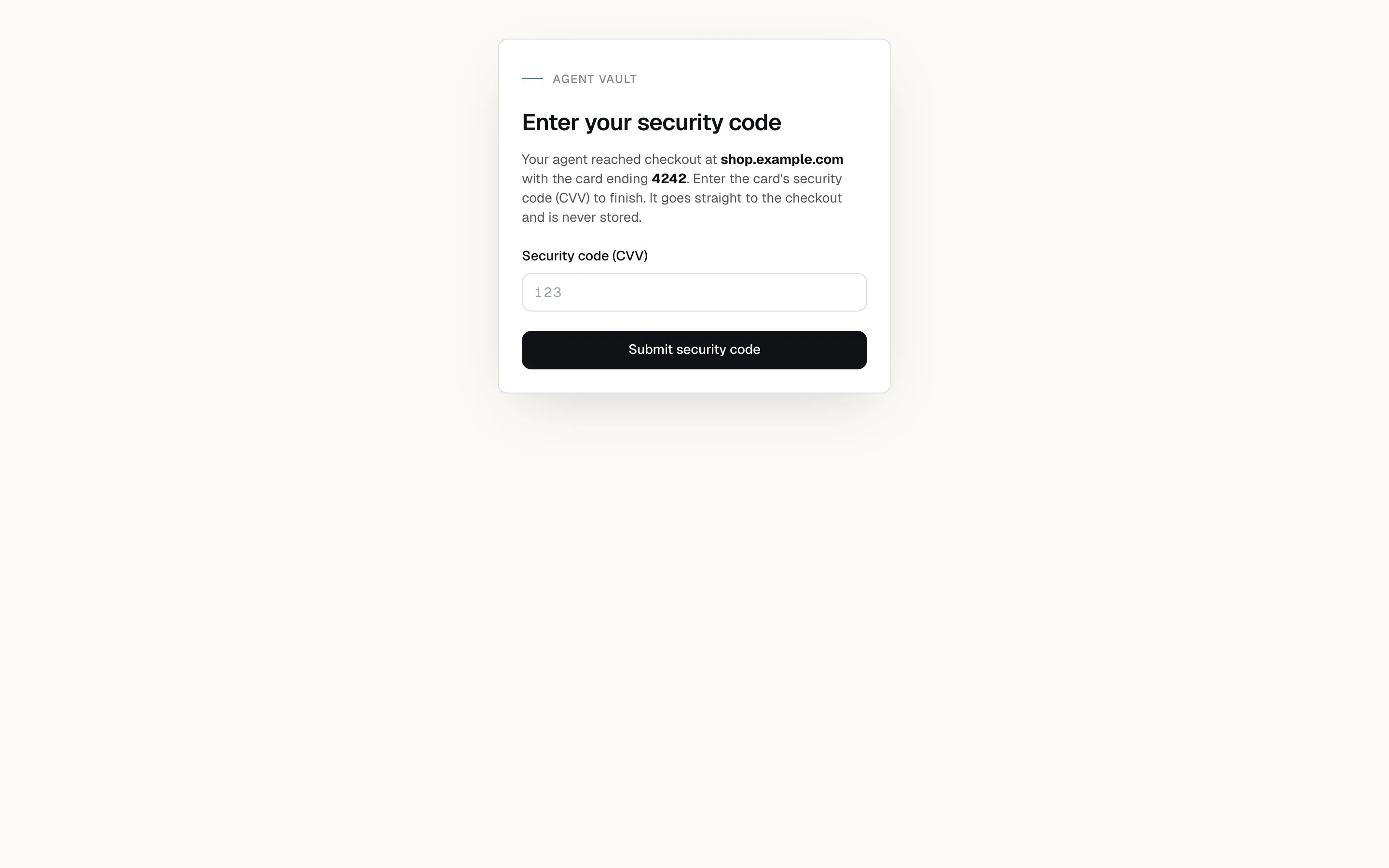
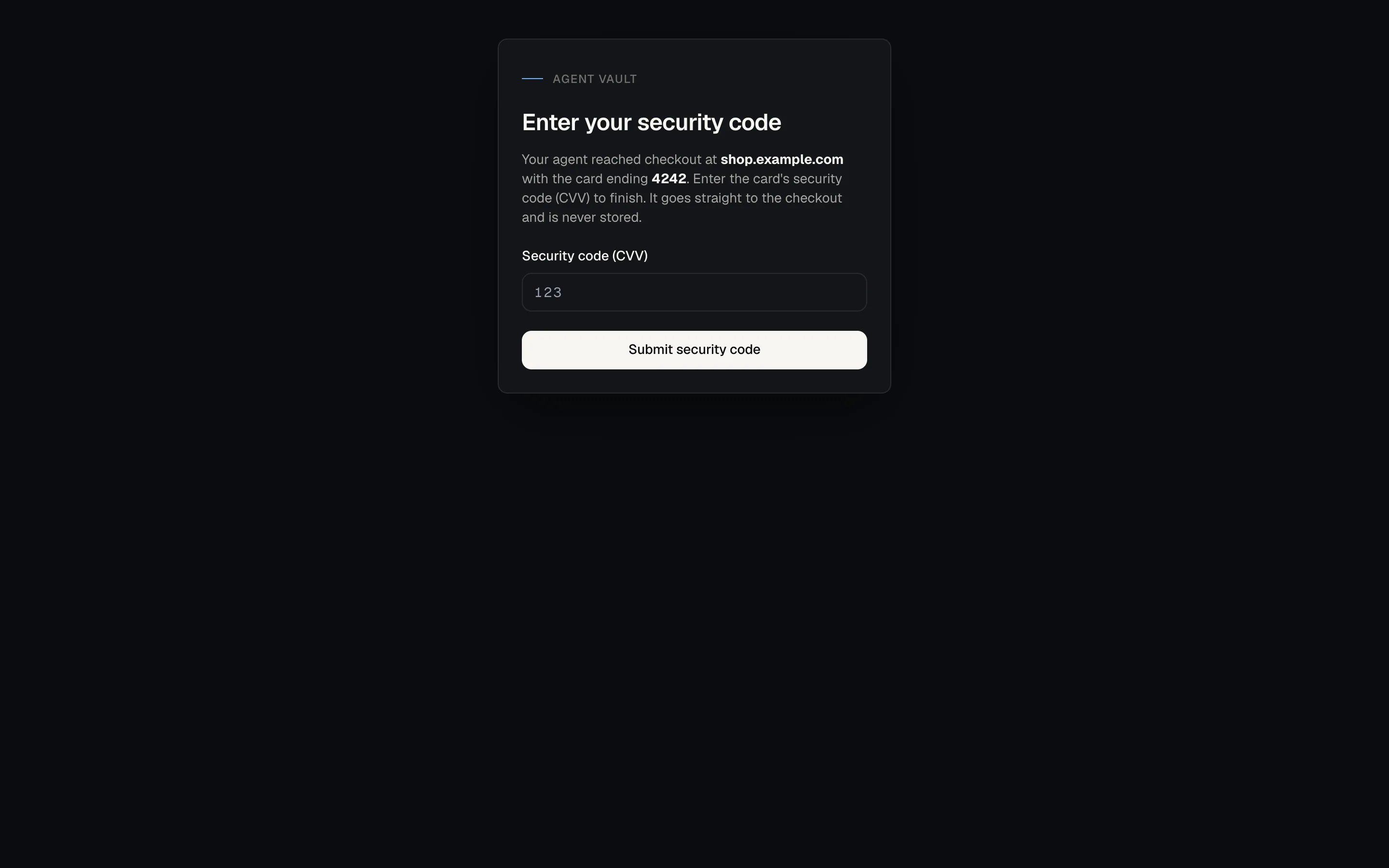
The live CVV entry page.
If something goes wrong
Thecvv_entry_required message says which of these happened.
A new session means filling the card number again. If the number was already filled before the code failed, that fill stays recorded: it still counts toward the card’s spend limits and the account’s payment quota, and it is not reversed. The new fill records a second spend attempt for the same purchase and can hit a spending cap or
plan_quota_reached. Check Activity before you open the new session.limit_reached, though no limit was reached. Use a checkout that takes the card number, or ask the account holder to remove the limit.
Next: Run a checkout end to end to see where the code fits in the full flow.